

Quick Read
This guide explains how to configure a proxy in Opera using your computer’s system-level network settings. You’ll learn how to access Opera’s proxy settings, enter your proxy host, port, and authentication details, and restart the browser to apply the configuration. It also explains how to verify that your proxy is working correctly by checking your visible IP address. By the end, you’ll have a simple setup for routing Opera traffic through a proxy.
What is Opera?
Opera is a free web browser known for its speed, built-in privacy tools, and a modern design. It is based on Chromium, which means it delivers a smooth experience similar to other popular browsers while offering additional features like a built-in VPN, ad blockers, and sidebar integrations.
Unlike some browsers that provide direct proxy configuration options, Opera relies on system-level network settings. This means any proxy you configure will apply across the browser through the operating system. Its simplicity makes it a practical choice for users who want a clean and efficient browsing setup.
Why Use a Proxy in Opera?
A proxy acts as an intermediary between your device and the website you visit. When used in Opera, it helps hide your real IP address, secure your browsing activity, and allow access to geo-restricted content.
Many users rely on proxies for tasks like managing multiple accounts, web scraping, and testing applications from different locations. It also improves privacy by routing your traffic through secure servers, reducing the risk of exposure.
Using a proxy gives you more control over how websites interact with your network, making it an essential tool for both casual users and professionals.
How to Configure Proxy in Opera Browser
Install and Launch Opera
Before configuring Proxying’s proxy, make sure Opera is installed on your device. If not, download it from the official Opera website and complete the installation.
Access Opera Settings
Open Opera and click on the menu icon in the top-left corner of the browser window. From the dropdown menu, select settings.
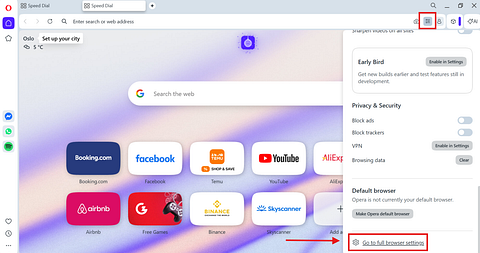
Navigate to System Settings
Scroll down in the Settings page and locate the System section.
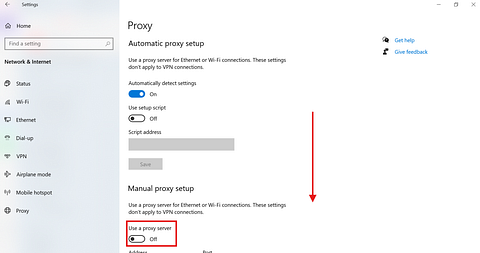
Click on “Open your computer’s proxy settings.” This will redirect you to your operating system’s proxy configuration panel.
Here, you can configure your proxy manually.
Select Manual Proxy Configuration
Enable the option to set up a proxy manually. This allows you to enter proxy server details. Manual configuration gives you control over how your internet traffic is routed and which proxy server is used.
Enter Proxy Credentials
Input the proxy details provided by your proxy provider.
- IP Address (Host): The proxy server address
- Port: The assigned port number
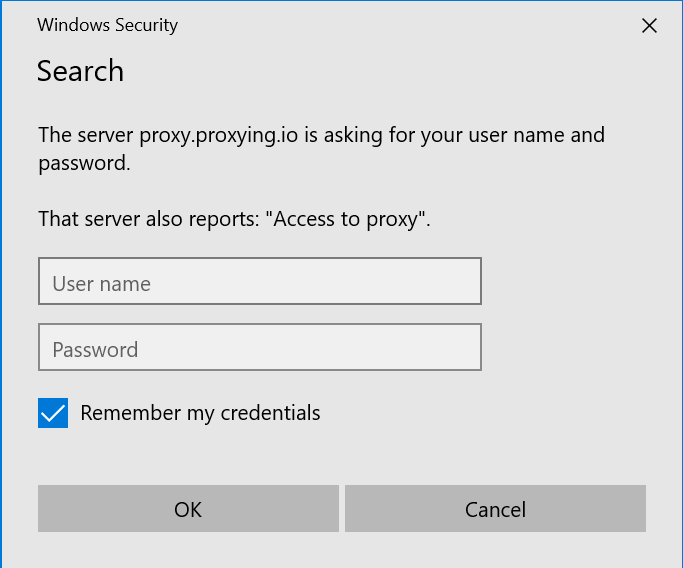
- Username/Password: If authentication is required
Make sure all details are entered correctly. Incorrect information can prevent the connection from working.
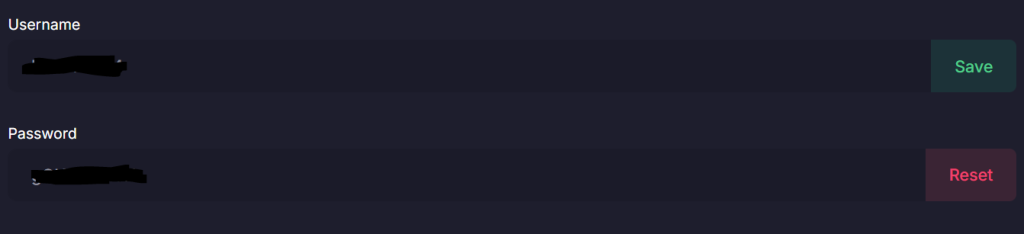
To find your proxy username and proxy password in the Proxying dashboard, click on Residential Proxies in the left panel.
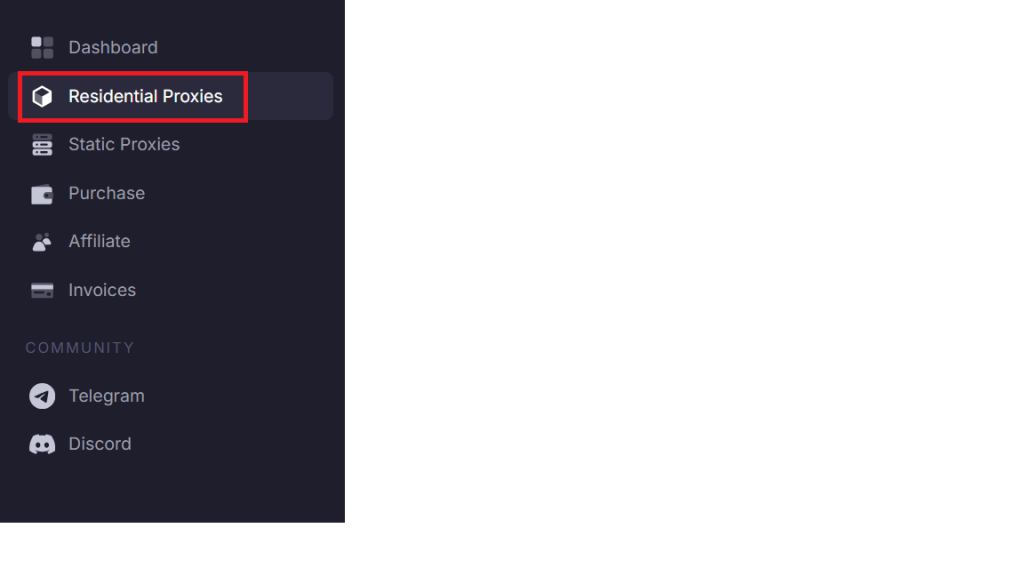
Scroll down to find your username and password.
Save Settings and Restart Opera
After entering the proxy details, save the settings and close the windows. Restart Opera to ensure the new configuration is applied properly. This helps avoid connectivity issues and ensures all traffic is routed through the proxy.
Verify Your Proxy Connection
To confirm Proxying’s proxy is working, visit an IP-checking website. If the displayed IP address matches your proxy instead of your real IP, the setup is successful. This setup ensures your traffic is being routed correctly.
Conclusion
Opera provides a simple and effective way to use proxies through system-level settings. While it does not offer a built-in proxy configuration panel like some browsers, its integration with system settings makes the process straightforward.