

I lost an entire lunch break trying to figure out why Steam wouldn’t load on the wifi. Browser said “connected,” Steam client said nothing at all, just spun on the login screen forever. Turned out the network admins had the whole platform blacklisted at the firewall level, probably to stop people gaming instead of working. Took me longer to diagnose than to actually fix, which is usually how these things go.
Steam is one of the most-used gaming platforms on the planet, and platforms that big attract restrictions from every direction. Some networks block it outright. Some countries limit it for regulatory reasons that have nothing to do with you personally. Sometimes accounts get flagged and locked out over something that happened weeks ago. Whatever the cause, the fix that actually works most of the time is a proxy. I will walk you through the “How to unblock Steam” maze, and then show the setup so you’re not stuck guessing at settings for an hour like I was.
Common Reasons You Can’t Access Steam
3 buckets cover almost every case I’ve run into.
Network Blocks
Schools, offices, libraries, anywhere with an IT department that doesn’t want gaming traffic on the network. These are usually blanket blocks on Steam’s domains or ports, not personal, not targeted, just a blunt policy applied to everyone on that connection.
Geo-Restrictions
Certain regions restrict access to Steam or specific games for legal and regulatory reasons. This one’s frustrating because it’s often out of your control entirely; the block sits at the country level, not the network level.
Account Bans
Different problem, same symptom. VAC bans, trade bans, and community bans all restrict what you can do on the platform, sometimes permanently. A proxy gets you back onto the network. It doesn’t undo a ban tied to your account, and I want to be upfront about that distinction before anyone assumes it’s a workaround for rule violations.
Why Use a Proxy to Unblock Steam
Reliable Access on Public Networks
A proxy routes your traffic through a different IP, so a network-level block on Steam’s domains stops seeing “you” and starts seeing an address it hasn’t blacklisted. That’s the whole mechanism. No magic, just a different exit point for your traffic.
Easy Setup and User-Friendly
You don’t need to be a network engineer for this. Point a browser extension or your system settings at a proxy address, log in, done. The part that trips people up isn’t the proxy; it’s picking a provider that actually gives you clean, unflagged IPs instead of addresses that got burned by the last thousand people who used them.
Reduced Latency
Picking a proxy location physically closer to the Steam server region you actually play on can shave real milliseconds off your connection. Not guaranteed; depends on your baseline route, but I’ve seen it help more than once when the default path was taking a weird detour.
Improved Privacy
A proxy also keeps your actual IP out of view from trackers, matchmaking services, and anyone running IP lookups on you mid-match. That’s a nice side benefit even if access wasn’t the original problem.
Step-by-Step Guide on How to Unblock Steam
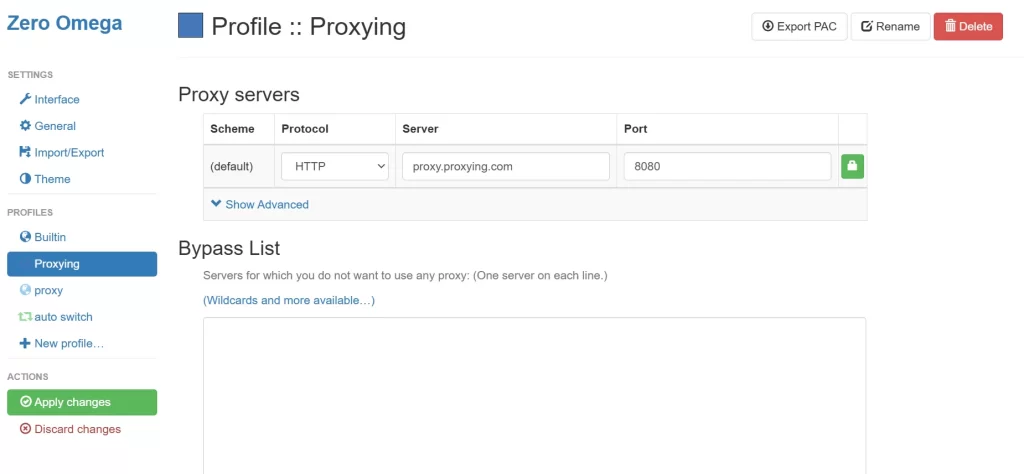
I’m not going to point you toward a proprietary extension tied to one provider, since that locks you into whatever that company ships and drops support for later. Instead, use a proxy manager extension that works with any provider’s credentials. Proxy SwitchyOmega is the one most people already have installed if they’ve done any proxy work before. It’s free, open source, and it’s stayed the top-rated option in this category for years because it just handles auth and switching cleanly without nonsense.
Step 1: Install a proxy manager extension. Search your browser’s extension store for Proxy SwitchyOmega, install it, and pin it to your toolbar so it’s one click away.
Step 2: Get your proxy credentials. Sign up for a Proxying account and grab the host, port, username, and password from your dashboard. If you’re not sure which proxy type to start with, residential proxies are the safest default for platform access since the IPs come from real ISP-assigned addresses rather than a datacenter block.
Step 3: Create a new profile in the extension. Name it something you’ll recognize later. “Steam” works fine. Then enter the host and port. Under authentication, drop in your username and password.
Step 4: Set your region. Pick a location close to the Steam server region you actually connect to. If you’re unblocking due to a geo-restriction, obviously pick a region where Steam isn’t restricted in the first place.
Step 5: Verify before you trust it. Switch the extension to your new profile, then check your outgoing IP against Proxying’s IP Lookup tool before opening Steam. You’re set if the IP matches your proxy’s region and not your real one.
curl -x http://username:password@proxy_host:port https://ipinfo.io/jsonThat command does the same verification from a terminal if you’d rather skip the browser check, useful if you’re also running the Steam desktop client rather than the web version.
Step 6: Log in and play. Open Steam, log in as normal, and browse or launch as you would on any other network. Switch the extension off when you’re done if you don’t want all your other browsing routed through the proxy too.
What About the Steam Desktop App?
Everything above routes browser traffic. The installed Steam client ignores your browser extension completely; it talks to the network directly, so it needs the proxy set at the operating system level instead. This is the step people miss, then wonder why the browser shows a clean IP while the client still looks blocked.
Windows
Open Settings > Network & Internet > Proxy. Under “Manual proxy setup,” turn on “Use a proxy server” and enter the host and port from your Proxying dashboard, then save. Windows doesn’t have a built-in field for proxy username and password here, so if your proxy requires authentication, launch Steam right after saving. The first connection attempt should trigger a Windows credential prompt. Enter your proxy username and password there.
macOS
Open System Settings > Network, select your active connection, and click Details > Proxies. Enable both “Web Proxy (HTTP)” and “Secure Web Proxy (HTTPS),” enter the server address and port for each, then click OK. macOS will prompt for a username and password if the proxy requires one. Enter your Proxying credentials there and apply the change.
After Either Setup
Fully quit Steam, don’t just close the window, and relaunch it. The client caches its network state on startup. A proxy change made while it’s running usually doesn’t take effect until it’s restarted. If you want to confirm the desktop client is actually using the new route before opening Steam, run the same curl check from Step 5 against the same proxy credentials you just entered in your OS settings. That way you know the proxy itself is reachable before blaming Steam for the rest.
Tips for Better Results
Avoid free or public proxies. I burned a weekend on a free proxy list once. Half the addresses were already dead. The other half were so overused Steam flagged them within minutes. Free proxies get shared across thousands of people, meaning they get blocked at roughly the same rate they get discovered.
Choose the right proxy type for your situation. Residential proxies work best when you need an IP that looks like an ordinary home connection. ISP proxies trade a little of that stealth for speed, worth it if you’re just clearing a network block and not fighting aggressive detection. Dedicated datacenter proxies are the fastest of all but easier for platforms to flag if you’re hammering the same IP constantly.
Choose a proxy close to your Steam region. Distance adds latency. Match the proxy location to the server region you actually play on, not just “somewhere unrestricted.”
Refresh or switch proxies if Steam loads slowly. A sluggish proxy isn’t always your connection’s fault. Rotate to a different IP in your pool before assuming the problem is on your end.
Keep your browser and extensions updated. Outdated extensions are the most common cause of a proxy that “just stopped working” for no obvious reason. Check for updates before you start troubleshooting anything else.
Respect Steam’s terms of service and local laws. A proxy solves access problems, network blocks, geo-restrictions, and latency. It’s not a tool for evading a legitimate account ban or violating regional gaming regulations. Treating it that way just gets the new IP flagged too.
Troubleshooting Common Issues
Steam still won’t load after connecting through the proxy. Confirm the proxy is actually active by checking your IP through the lookup tool first. I’ve seen people troubleshoot Steam for twenty minutes only to realize the extension silently reverted to “direct connection” after a browser restart.
Login works but game downloads are painfully slow. Some proxy types aren’t built for sustained high-bandwidth transfers. If you’re downloading large game files regularly, an ISP proxy or dedicated connection will outperform a shared residential IP for that specific job.
Steam client (not browser) still shows the old region or block. The desktop client doesn’t pick up a browser extension’s proxy settings at all. See the desktop app setup above, and make sure you fully quit and relaunch Steam after changing your OS proxy settings, not just close and reopen the window.
Getting logged out repeatedly. Switching proxy IPs mid-session can trigger Steam’s own security checks, since a login suddenly jumping regions looks suspicious to their systems too. Stick with one IP for the length of a session instead of rotating mid-play.
Verification IP doesn’t match the proxy’s expected region. Double-check the profile in your proxy manager; it’s easy to have two profiles saved and accidentally leave the wrong one active.
To Sum Up
Getting blocked out of Steam is almost always a network problem. Pick a proxy type that matches what you actually need, set it up once through a proxy manager extension instead of a locked-in proprietary one, and verify the connection before you assume it’s working. For background on how proxies work generally, our guide on what a proxy actually is is a good starting point, and if gaming traffic specifically is what you’re routing, our breakdown of the best proxies for gaming and botting use cases covers picks beyond just Steam. If you’re weighing whether this is even worth the setup, our piece on proxy safety is worth a read before you commit to a provider.