
When you are scrolling through your Facebook feed, the most annoying part is receiving this error message: “Session Expired. Please log in again”. In simple terms, this means your Facebook login session is no longer valid, and you need to log in again to continue using your account.
Although it’s a security measure, this error can also happen because of app glitches, outdated login data, or network issues. Encountering this error repeatedly interrupts your Facebook experience, especially if you use Facebook regularly.
In this guide, I will explain how to fix the Facebook session expired error and prevent it from happening again using different techniques (such as using a proxy).
What Causes the Facebook Session Expired Error?
First, I will briefly explain the scenarios that lead to this error:
- Security Reasons
- Changing Your Password
- Server Issues
- Browser Issues
- Long Period of Inactivity
- Logged in on Multiple Devices
- Malicious Third-Party Browser Extensions
- Outdated Facebook Application
These are some common reasons for your Facebook session expiring. Keep in mind that the most common reason for this pop-up message is that Facebook detects unusual activity and logs you out to protect your account.
Note: While using social media platforms, such as Facebook or Instagram, you might come across other error messages as well.
How to Fix Facebook Session Expired Error [8 Simple Methods]
Here are some of the easiest ways to fix the Facebook Session Expired Error.
1. Update the Facebook Application
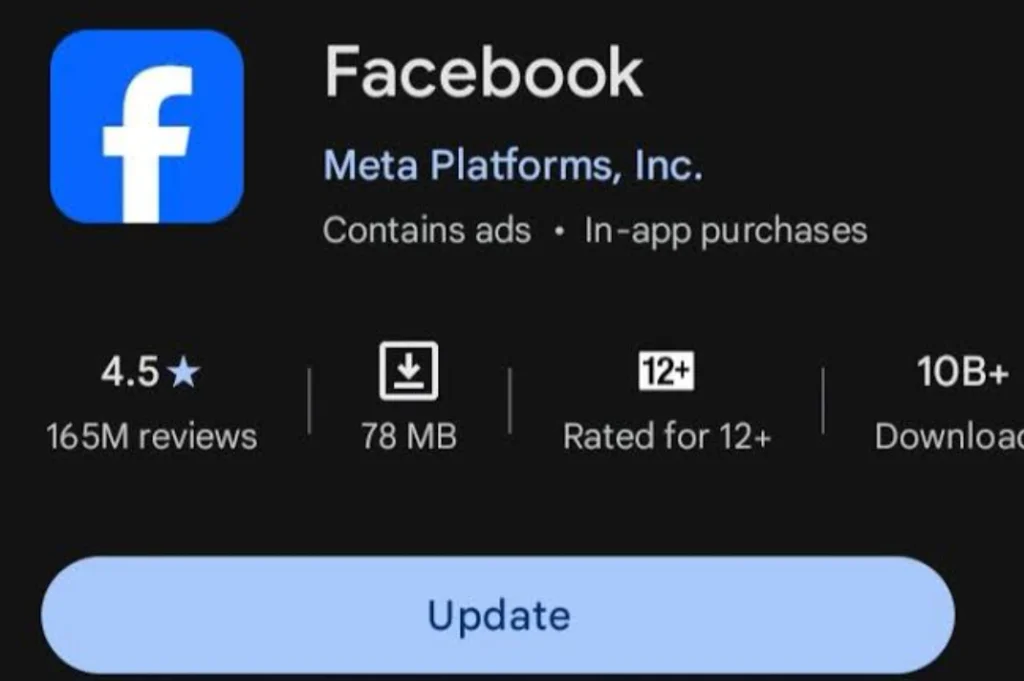
An outdated Facebook app can sometimes cause login problems, including session-related errors. This is why it is always recommended to use the latest version of the Facebook app so that Facebook does not end your ongoing session.
How to Do It
For Android Users:
- Open the Google Play Store.
- Search for the official Facebook app.
- Tap Update if the option is available.
- Wait for the update to finish installing.
- Open Facebook and log in again if prompted.
- Check whether the session expired error has been resolved.
For iOS Users:
- Open the Apple App Store.
- Search for the official Facebook app.
- Tap Update if available. If you see Open, your app is already up to date.
- Wait for the update to finish.
- Open Facebook and log in again if prompted.
- Check whether the Facebook session expires error message still appears.
For Windows Users:
- Open the Apple App Store.
- Search for the official Facebook app.
- Tap Update if available.
- Wait for the update to finish.
- Open Facebook and log in again if prompted.
- Most likely, you will not encounter the Facebook expired session error.
2. Re-Login
If Facebook keeps saying “Session Expired”, try logging out of your account and signing in again. This refreshes the login session and may resolve temporary authentication issues.
How to Do It
- Open the Facebook app on your device.
- Tap the Menu icon (☰) or your profile picture to access the menu, depending on your app version.
- Scroll down and tap Log Out.
- Close the Facebook app and reopen it.
- Enter your login credentials or use your saved login details to sign in again.
- Check whether the session expired error has been resolved.
3. Log Out of Other Devices
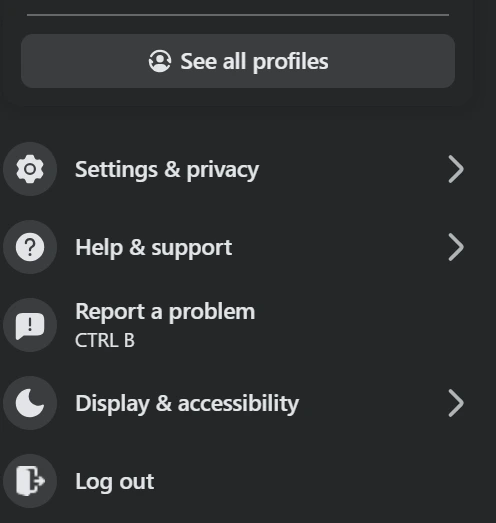
Sometimes, being logged in to your Facebook account on more than one device can lead to the “Facebook session expired error” on your iPhone, smartphone, or laptop.
How to Do It
- Open the Facebook app on your device.
- Tap the Menu icon (☰) or your profile picture.
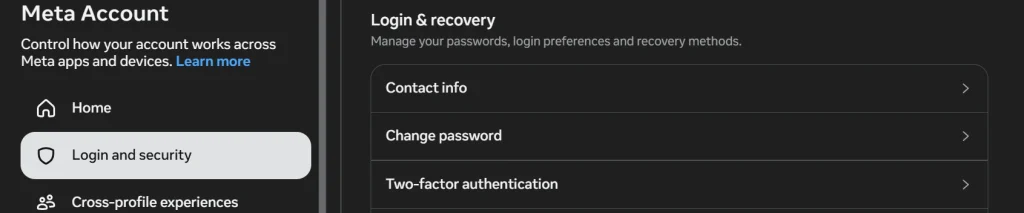
- Go to Settings and Privacy -> Settings -> Meta Account -> Login and Security.
- Select Where you’re logged in and choose your Facebook account if prompted.
- Review the list of active sessions and select the device you want to log out from.
- Tap Log out to end that session.
- Repeat these steps to select multiple devices where you want to end the sessions.
4. Clear Your Browser’s Cache and Cookies
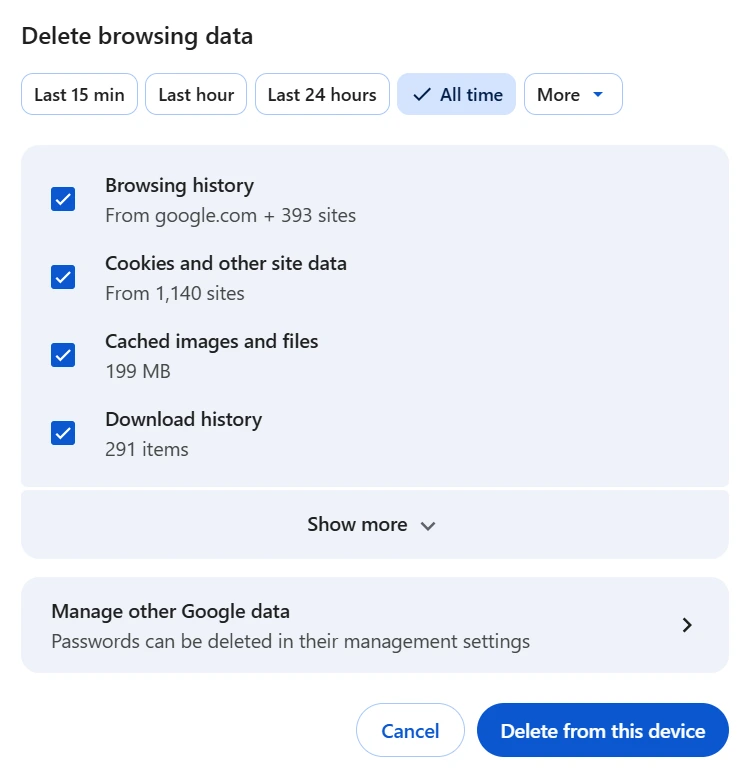
Here’s the thing: If you use Facebook through a web browser, outdated cached files or corrupted cookies may contribute to login problems. This is why clearing your browser’s cache and cookies can help resolve the Facebook session expired issue.
How to Do It
On Chrome
- Open Google Chrome on your computer.
- Click the three-dot menu in the top-right corner.
- Go to Settings -> Privacy and security -> Delete browsing data.
- Select “All time” from the time range menu.
- Check the boxes for Cookies and other site data and Cached images and files.
- Click Delete data.
- Reopen Facebook in the same browser and log in again to check whether the error has been resolved.
On Opera
- Open the Opera browser on your computer.
- Open the browser menu and go to Settings.
- Navigate to the privacy and security section and select Delete browsing data.
- Set the time range to All time.
- Select Cookies and other site data and Cached images and files.
- Click Delete data to confirm.
- Open Facebook again and log in to check whether the issue persists.
On Microsoft Edge
- Open Microsoft Edge on your computer.
- Click the three-dot menu in the top-right corner.
- Select Settings -> Privacy, search, and services.
- Under Clear browsing data, click Choose what to clear.
- Set the time range to All time.
- Select Cookies and other site data and Cached images and files.
- Click Clear now.
5. Refresh the Page
If you encounter the Facebook session expired error while using Facebook in a browser, refreshing the page is another useful method. The following steps will help you reload the page and resolve the error.
How to Do It
- Open Facebook in your preferred web browser.
- Click the Refresh icon next to the address bar, or press Ctrl + R on Windows.
- If you’re using a Mac, press Command + R to reload the page.
- Wait for Facebook to finish loading.
- Enter your login credentials to sign in again.
- Check whether you can access your Facebook account without seeing the same error.
6. Restart Your Device
If you are using a mobile phone, another technique that can sometimes resolve the session being expired on Facebook is simply restarting your device. Simply restart or reboot your device, restart the Facebook and Messenger apps, and check if the error persists.
7. Change the Password
Another way to resolve this error is simply changing your password. Why? Because sometimes Facebook ends your session if it detects suspicious activity or a login attempt.
Follow these steps to change your Facebook password easily:
How to Do It:
- Open the official Facebook app on your device
- Go to Menu -> Settings and Privacy -> Settings.
- Open Accounts Center -> Password and security (or Login and Security).
- Select Change password and choose your Facebook account if prompted.
- Enter your current password, followed by your new password.
- Confirm the new password and follow the on-screen instructions to save your changes.
- Log in again with your new password if Facebook prompts you to do so.

8. Enable Two-Factor Authentication
To protect your Facebook account from unauthorized access, it is recommended to enable two-factor authentication (2FA). This security feature adds an extra verification step when someone tries to log in from an unrecognized device.
This means that even if an attacker obtains your password, they may not be able to access your account without the additional verification method. Think of 2FA as an extra layer of security to protect your Facebook account.
How to Do It
- Open the Facebook app on your device.
- Tap the Menu icon (☰) or your profile picture.
- Go to Settings & privacy -> Settings.
- Open Meta Account. On the next screen, select the “Login and Security” option.
- Select Two-factor authentication and choose your Facebook account if prompted.
- Enter your Facebook account password.
- Select your preferred security method, such as an authentication app, text message (SMS), or a security key, depending on the available options.
- Follow the on-screen instructions to set up and verify your chosen method.
- Now, for every login attempt, Facebook will request additional verification for security purposes.
Why Choose Proxying to Avoid the Facebook Session Expired Error?
By now, you can easily answer this question: “How to fix the Facebook session expired error?” But what if you want to avoid this error message in the first place?
A reliable proxy service provider, such as Proxying, can help you prevent this error, especially if your goal is data scraping or multiple account management. A rotating residential proxy changes your IP at regular intervals; this reduces the risk of the Facebook session expired error.
With Proxying’s Facebook proxies, you get the following advantages:
- 99% uptime
- Zero bandwidth limits
- Low entry cost (starting from $3/GB or $2.25/IP)
- Ideal for bulk data scraping and multi-account management
Read these blogs to learn all about proxies or how to integrate Proxying with your browser.