

Google Sheets is not a web scraping tool. But it can scrape.
4 built-in functions let you pull live data from websites directly into cells, refreshing automatically, with no code written and no server to maintain. For the right use cases – price checks on small sets of products, RSS feed monitoring, pulling a public dataset you need weekly – they get the job done fast.
This guide covers all four functions in detail: what they do, how to write the formulas, real examples you can copy, and the honest limitations that will eventually push you toward a proper setup with proxies. We’ll also show you how to find XPaths in your browser so you’re not guessing at formulas.
What Google Sheets Can Actually Do For Scraping
Before getting into syntax, it helps to understand what’s actually happening when you type a formula.
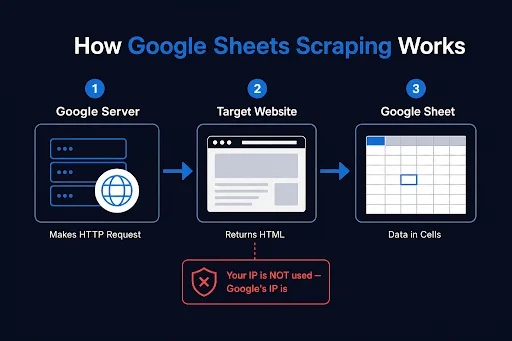
When you enter an IMPORTXML or IMPORTHTML formula, Google’s servers make the HTTP request – not your browser, not your IP. Google fetches the page, parses it, and returns the matching data to your sheet. The whole thing runs on Google’s infrastructure.
That architecture has two big consequences. First, you get zero control over the requesting IP. If a site blocks Google’s crawlers, your formula returns #N/A, and there’s nothing you can do about it. Second, refresh timing is up to Google; roughly hourly, but unpredictable.
With that in mind, here are the four functions:
| Function | What It Scrapes | Needs XPath? |
| IMPORTXML | HTML elements, XML nodes, RSS ATOM feeds, CSV, TSV | Yes |
| IMPORTHTML | HTML tables and lists | No |
| IMPORTFEED | RSS and ATOM feeds | No |
| IMPORTDATA | CSV and TSV files from a URL | No |
XPath is a query language for targeting specific elements inside an HTML or XML document – think of it like a CSS selector, but for data. You’ll use it to tell IMPORTXML exactly which part of a page you want (a price, a title, a table row). We’ll cover how to write them in a dedicated section below – no need to memorize anything upfront.
You can read the IMPORTXML documentation here.
IMPORTXML
IMPORTXML is the most capable of the four. It parses HTML, XML, CSV, TSV, RSS, and ATOM – and lets you target specific elements using XPath queries.
=IMPORTXML(url, xpath_query)- url – the full page URL, in quotes, or a reference to a cell containing the URL
- xpath_query – an XPath expression targeting the elements you want
Example: pull all H2 headings from a page
=IMPORTXML("https://en.wikipedia.org/wiki/Web_scraping", "//h2/span[@class='mw-headline']/text()")This returns the text of every H2 heading. Each heading lands in its own row.
Example: extract product prices
=IMPORTXML("https://example.com/products", "//span[@class='price']/text()")Finds every <span> with class price and returns the text inside.
Example: pull all external links from a page
=IMPORTXML("https://example.com", "//a[starts-with(@href,'http')]/@href")Returns every link that starts with http – a quick way to audit outbound links.
Example: scrape an RSS feed title list
=IMPORTXML("https://feeds.feedburner.com/blogname", "//item/title/text()")Parses the RSS XML and returns each item’s title.
The main thing that trips people up with IMPORTXML is writing the XPath. Let’s deal with that now. If you already know this, you can skip here.
How to write XPaths (without memorizing syntax)
You don’t need to learn XPath from scratch. Your browser can find it for you.
Open the page you want to scrape in Chrome. Right-click on the element you want – a price, a heading, a link – and click Inspect. In the DevTools panel, the HTML element is highlighted. Right-click it, choose Copy > Copy XPath, and paste it into your formula.
There are two main types of XPath. An absolute XPath (Copy full XPath) starts from the very top of the page and follows the exact path to an element. It’s easy to copy but can break if the page layout changes. A relative XPath (Copy XPath) starts from a meaningful part of the page and looks for patterns instead, making it more flexible and reliable for web scraping.
The relative XPath is great for finding one specific item. If you want to scrape lots of similar items, like every product price or every article title on the page, you’ll usually need to tweak the XPath a little. Instead of pointing to one exact element, it points to a pattern that matches all similar elements. Think of it like changing directions to one house into directions for every house on the same street.
XPath has a learning curve, but 90% of what you need for web scraping comes down to 4 building blocks.
1. Select elements by tag
//divThe // means “anywhere in the document.” This returns every <div> on the page. Swap div for h2, span, a, li – whatever tag holds your data.
2. Get just the text
//h2/text()The /text() at the end strips the HTML tags and returns the raw string inside the element. Without it, you get the full node including any nested tags.
3. Pull an attribute
//a/@hrefThe @ prefix targets an attribute instead of a child element. Common uses: @href for links, @src for images, @data-price for scraped values stored in custom attributes.
4. Filter by attribute value
//div[@class="product-title"]Square brackets add a condition. Only <div> elements with class=”product-title” match. You can filter by any attribute – @id, @data-sku, anything on the element.
These 4 patterns combine. To get the text of every product title:
//div[@class="product-title"]/text()Quick reference:
| Goal | XPath |
| Any element by ID | //*[@id=’main’ |
| Second match only | (//h2)[2] |
| Direct child | //ul[@class=’results’]/li |
| Partial class match | //div[contains(@class, ‘product’)] |
Test in your browser before committing to a formula. Open the console (F12) and run:
$x("//div[@class='product-title']/text()")If elements come back, your XPath is valid. Empty array means the path is wrong, or the content is rendered by JavaScript after page load – which Sheets can’t reach.
How to Use Google Sheets for Web Scraping A Wikipedia Table
Here’s a practical walkthrough from start to finish.
Goal: Pull the list of the most-spoken languages from Wikipedia into a sheet.
Step 1. Open the Wikipedia article: List of languages by number of native speakers.
Step 2. Inspect the table. Right-click the table, click Inspect. Note whether it’s the 1st, 2nd, or 3rd table on the page.
Step 3. Open a new Google Sheet. In cell A1, enter:
=IMPORTHTML("https://en.wikipedia.org/wiki/List_of_languages_by_number_of_native_speakers", "table", 1)You might get a warning about sending/receiving data from external parties. Click Allow Access.

Step 4. Press Enter. The table fills in automatically – language names, speaker counts, language family, and more.
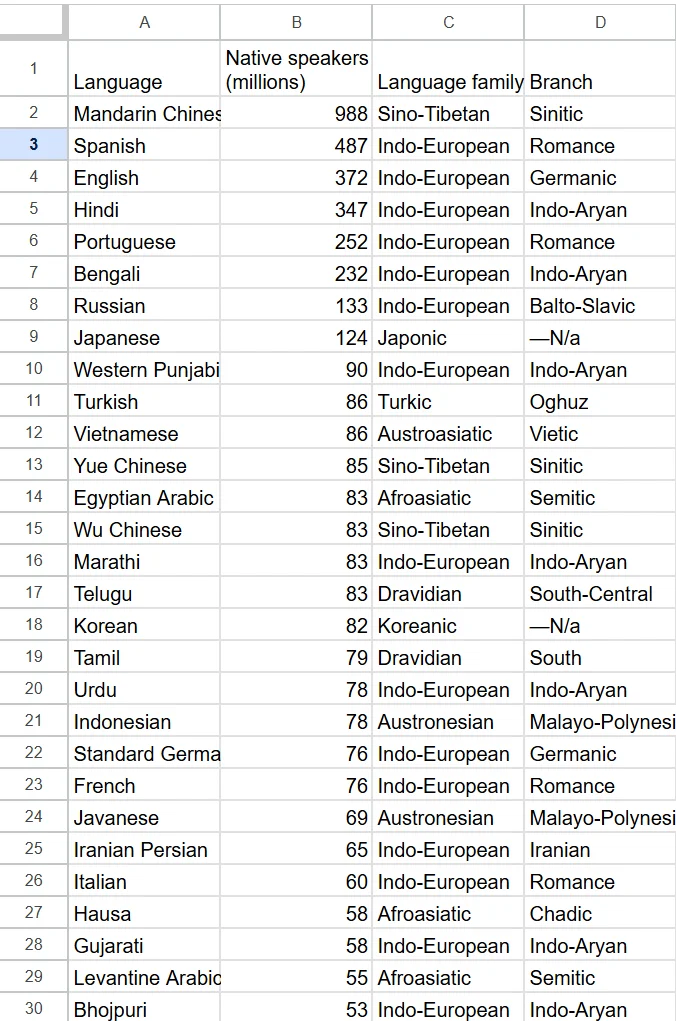
That’s it. No API, no code, no server. The data refreshes roughly every hour.
If you want a specific column rather than the whole table, switch to IMPORTXML and target the table by its class instead of its position:
=IMPORTXML("https://en.wikipedia.org/wiki/List_of_languages_by_number_of_native_speakers","//table[contains(@class,'wikitable')]//tr/td[1]")This targets the first wikitable on the page by class rather than position, so it won’t break if Wikipedia adds another table above it.
IMPORTHTML
When you need an entire table or list and don’t want to write XPath, IMPORTHTML is the simpler choice.
=IMPORTHTML(url, query, index)- url – the page URL
- query – either “table” or “list”
- index – which table or list on the page (starting from 1). Tables and lists have separate indices.
Example: grab the 3rd table from a page
=IMPORTHTML("https://example.com/data", "table", 3)Example: grab the first unordered list
=IMPORTHTML("https://example.com/page", "list", 1)The index follows the order elements appear in the HTML source, not on screen. If you’re getting the wrong table, inspect the page source and count tables from the top to find the right index.
Common error: #N/A with the right URL
If the URL loads fine in your browser but the formula returns #N/A, the most likely cause is that the table is rendered by JavaScript rather than being in the raw HTML. IMPORTHTML only sees the static HTML – anything added by JavaScript is invisible to it.
For JavaScript-rendered tables, you need a headless browser or a scraping API.
IMPORTFEED
If the site you want to monitor publishes an RSS or ATOM feed, IMPORTFEED is the easiest way to pull it.
=IMPORTFEED(url, [feed_query], [num_items])- url – the feed URL
- feed_query – optional; specifies what to return (“items title”, “items summary”, “items author”, “items created”, etc.)
- num_items – optional; caps the number of items returned
Example: import the 10 latest posts from a blog
=IMPORTFEED("https://news.ycombinator.com/rss", "items title", 10)Returns just the titles of the 10 most recent Hacker News posts.
Example: import titles and links together
Put the titles in column A and links in column B:
=IMPORTFEED("https://news.ycombinator.com/rss", "items title", 10)=IMPORTFEED("https://news.ycombinator.com/rss", "items url", 10)Example: get the feed’s own metadata
=IMPORTFEED("https://news.ycombinator.com/rss", "feed title")Returns the feed title – “Hacker News” in this case. Useful if you’re aggregating multiple feeds and want to label each source automatically.
Most news sites, blogs, and podcasts publish RSS feeds. Check for a link in the page footer, or try appending /feed, /rss, or /feed.xml to the domain.
IMPORTDATA
If you have a website URL that contains a CSV file, you can use the IMPORTDATA function to get the data. For example, create a new sheet and enter the following URL in the cell A1:
https://www2.census.gov/programs-surveys/decennial/2020/data/apportionment/apportionment.csv
Example: reference the URL from a cell
Use:
=IMPORTDATA(A1)This makes it easy to swap URLs without editing the formula – useful if you’re monitoring multiple data sources.
IMPORTDATA only works with true CSV or TSV files. If the URL returns JSON, HTML, or any other format, the formula fails. Check the URL directly in your browser first – if it downloads a file or shows raw comma-separated text, IMPORTDATA will work.
Making The Data Stay Fresh
All 4 functions refresh automatically, but Google doesn’t give you a precise schedule. In practice, it’s roughly once per hour. That’s fine for most monitoring use cases – checking daily prices, pulling weekly datasets, tracking RSS feeds.
If you need an immediate refresh:
- Click the cell with the formula
- Add a space at the end of the formula text
- Delete the space and press Enter
Google treats this as a formula change and re-fetches immediately.
For more predictable refresh timing, you can use Google Apps Script to trigger a recalculation on a schedule. This script forces a refresh every 30 minutes:
function forceRefresh() {
  var sheet = SpreadsheetApp.getActiveSpreadsheet().getActiveSheet();
  var cell = sheet.getRange("A1"); // Change to the cell with your IMPORT formula
  var formula = cell.getFormula();
  cell.clearContent();
  SpreadsheetApp.flush();
  cell.setFormula(formula);
}Set it to run on a time-based trigger in the Apps Script editor (Extensions > Apps Script > Triggers).
Limitations: What Google Sheets Can’t Do
This is where most people hit a wall. Understanding these limits up front saves a lot of frustration.
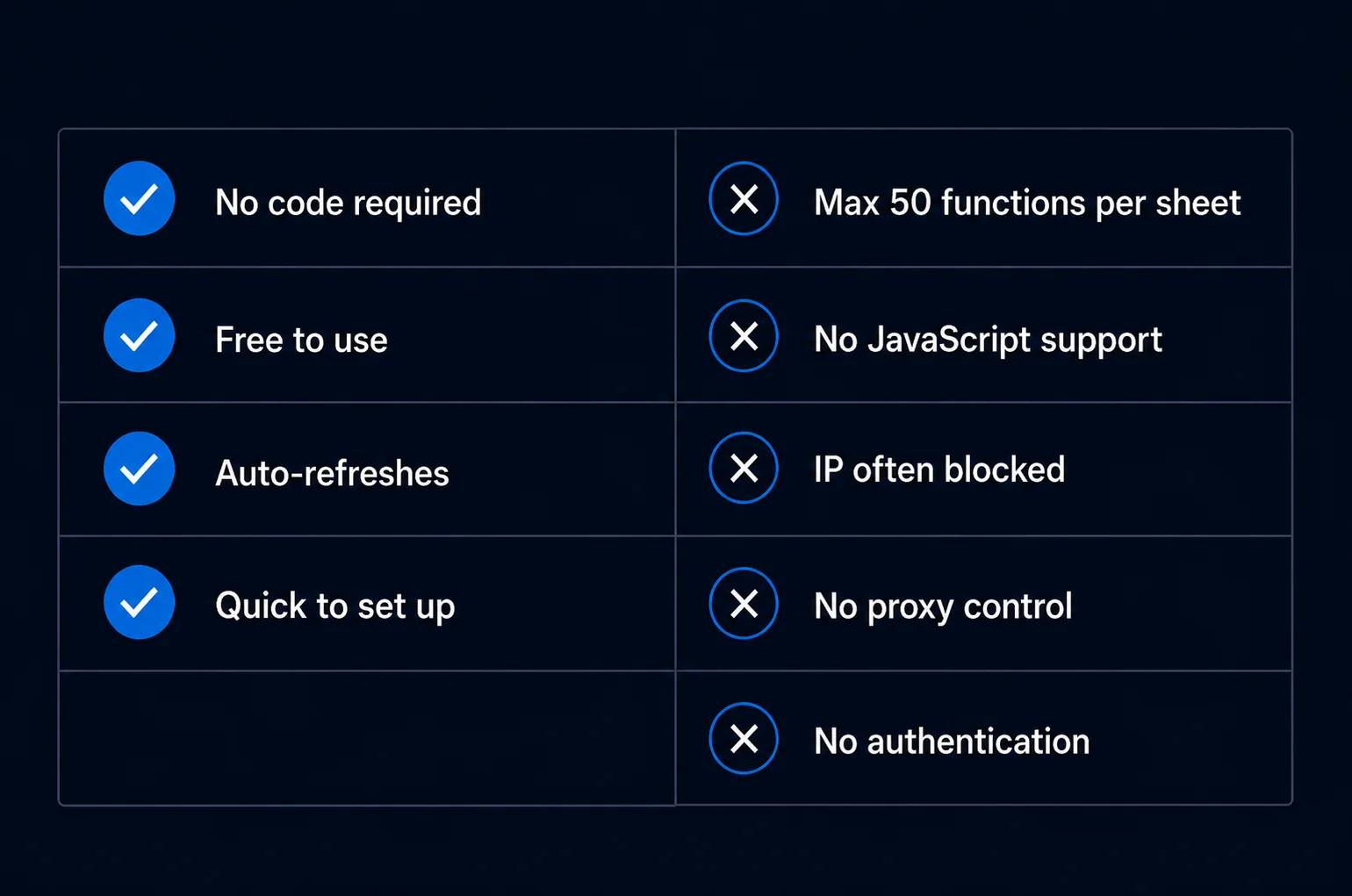
The 50-function cap. Each sheet allows a maximum of 50 IMPORT function calls total – across all four types combined. If you’re monitoring 60 product prices, you can’t do it in one sheet. You can split across multiple sheets within the same spreadsheet, but the cap applies per sheet.
No JavaScript rendering. IMPORTXML and IMPORTHTML only see the raw HTML returned by the server. If a page uses JavaScript to load content – which most modern e-commerce sites and web apps do – the data you want won’t be in that raw HTML. The formula returns empty or incorrect results. For JavaScript-heavy sites, you need a headless browser.
No control over the requesting IP. Google’s servers make the requests on your behalf. If a site blocks Google’s IPs (or has bot detection that flags Google’s crawlers), your formulas fail with no recourse. You can’t rotate IPs, you can’t use residential proxies, and you can’t change request headers. For sites with aggressive bot detection, Sheets won’t work at all.
No authentication. You cannot include login credentials, API keys, or session cookies in any IMPORT function. Anything behind a login wall is off-limits.
No custom headers. Want to set a custom User-Agent? Pass an Authorization header? Control Accept-Language? None of that is possible with IMPORT functions.
Unpredictable refresh timing. If your use case depends on data being current within minutes, Google Sheets is not the right tool. The refresh schedule is roughly hourly, not guaranteed.
When To Move To A Dedicated Scraper With Proxies
Google Sheets works well for a specific slice of use cases. Once you’re outside that slice, you need something more capable.
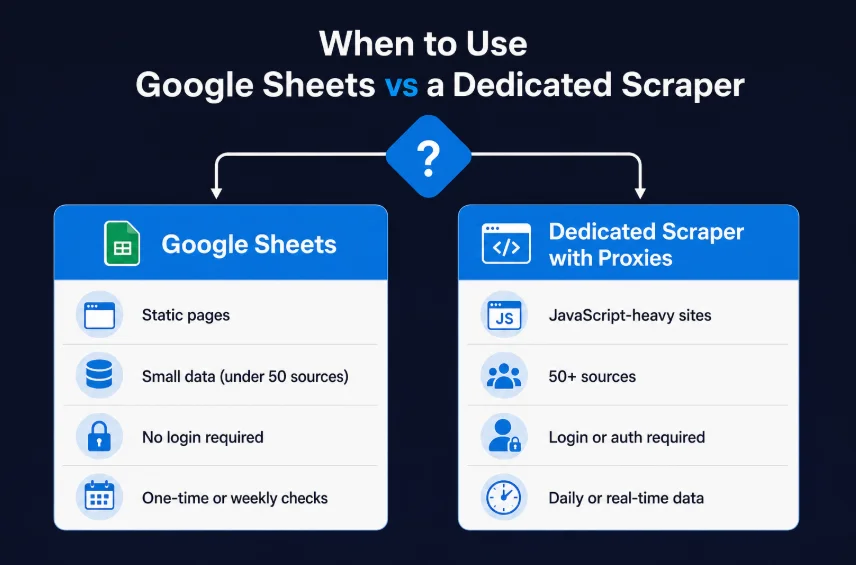
Use Google Sheets when:
- The data is on a public, static HTML page
- You need fewer than 50 data sources
- Hourly refresh is good enough
- No login or authentication is required
- You want zero setup and no code
Switch to a dedicated scraper when:
- The target site blocks Google’s IPs
- Pages are rendered by JavaScript
- You need more than 50 sources
- You need fresh data more than once per hour
- Authentication is required
- You need to control request headers or cookies
The most common trigger is IP blocking. Sites that actively protect their data – e-commerce, travel, real estate, finance – often block Google’s crawler IPs. At that point, no formula tweak fixes the problem. You need to control the IP making the request.
That’s where residential proxies come in. Instead of Google’s datacenter IPs, requests go through real residential IP addresses – the kind that belong to actual internet users – which are far harder for sites to block. Pairing a Python scraper with IP rotation means you’re not tied to a single IP, and blocks become much less of a problem.
For a practical example of this pattern, see our guide on web scraping with Python – it covers sending requests through proxies, handling retries, and parsing the responses you get back.
If you’re scraping Amazon or similar large e-commerce platforms, the blocking behavior gets even more aggressive. Our guide on how Proxying helps with Amazon and eBay covers the specifics.
From Sheets to Proxying
When Google Sheets hits its limits, Proxying is a natural next step for teams that need more control. The service provides a pool of 10M+ residential IPs across 190+ countries, with pay-as-you-go pricing starting at $1.50/GB – no subscription required.
Where Sheets gives you one fixed IP (Google’s), Proxying gives you rotating residential IPs that look like real user traffic. That means sites with aggressive bot detection are far less likely to block your requests. You get unlimited concurrent sessions, HTTP/HTTPS and SOCKS5 support, and detailed dashboard analytics so you can see exactly what’s being consumed.
The upgrade path from Google Sheets is straightforward. Start with IMPORT functions for quick data pulls. When you hit a wall – blocking, scale, JavaScript rendering, auth – move to Python with requests routed through Proxying’s residential proxy endpoints. The data you want is the same; the infrastructure behind the fetch is more capable.