
Quick Read
Finding your IP address is useful for troubleshooting network problems, configuring proxies, setting up remote access, and checking your online connection. The easiest method is to use an online IP lookup tool, while Windows users can find their private IP with
ipconfig. Developers can also use command-line tools such ascurlto check their public IP. This guide explains the difference between public and private IPs and the simplest ways to find and protect your address.
Every device connected to the internet has something called an IP address. Whether you are browsing a website, sending an email, or connecting to an online service, your device uses this address to communicate with other systems across the network.
Sometimes, you may need to find your own IP address. This can happen when troubleshooting network issues, setting up proxies, configuring remote access, or simply checking your online connection. Fortunately, finding your IP address is much easier than many people think.
In this guide, we will explain what an IP address is, why it matters, and the different ways you can quickly find your own IP address using online tools or your device settings.
What Is an IP Address?
An IP address, short for Internet Protocol address, is a unique identifier assigned to every device connected to a network. It works like a digital address that allows devices to send and receive information across the internet.
When you visit a website, your device sends a request to the website’s server. The server then uses your IP address to send the requested data back to your device. Without IP addresses, communication between devices on the internet would not be possible.
IP addresses usually appear as a sequence of numbers separated by periods, such as 192.168.1.1. This format is known as IPv4. There is also a newer version called IPv6, which uses a longer combination of numbers and letters to support the growing number of devices connected to the internet.
For a more detailed explanation of IP addresses and how they work, you can refer to our complete guide.
Why You Might Need to Find Your IP Address
One of the most common reasons is troubleshooting network issues. If a website or service is not working properly, checking your IP address can help identify connectivity problems.
Another reason is when configuring proxies or remote access tools. Many network setups require you to know your IP address to allow or restrict access.
Developers and web scraping professionals also check their IP addresses to confirm that their proxies or network configurations are working correctly. This helps ensure requests are being sent through the intended connection.
The Difference Between Public and Private IP Addresses
Not all IP addresses work in the same way. In most cases, your device has both a public IP address and a private IP address.
A public IP address is assigned by your internet service provider and is visible on the internet. Websites and online services see this address when your device connects to them.
A private IP address, on the other hand, is used within a local network such as your home or office Wi-Fi. Your router assigns private IP addresses to devices like laptops, smartphones, and smart TVs.
The router acts as a bridge between your private network and the public internet. While many devices may share the same public IP address, each device inside the network has its own private IP.
The Easiest Way to Find Your IP Address
The fastest way to find your IP address is by using an online IP lookup tool. These tools instantly display your public IP address along with additional network details.
For example, you can use the Proxying IP lookup tool to quickly see your current IP address. Simply open the tool in your browser, and it will automatically detect and display your IP information.
This method is especially helpful because it requires no technical steps or commands. Within seconds, you can confirm your public IP address and verify whether your connection is working as expected.
How to Find Your IP Address
You can easily find your IP address through the Command Prompt.
First, open the Command Prompt by typing cmd into the Windows search bar and pressing Enter. Once the terminal window opens, type the following command:
curl ifconfig.me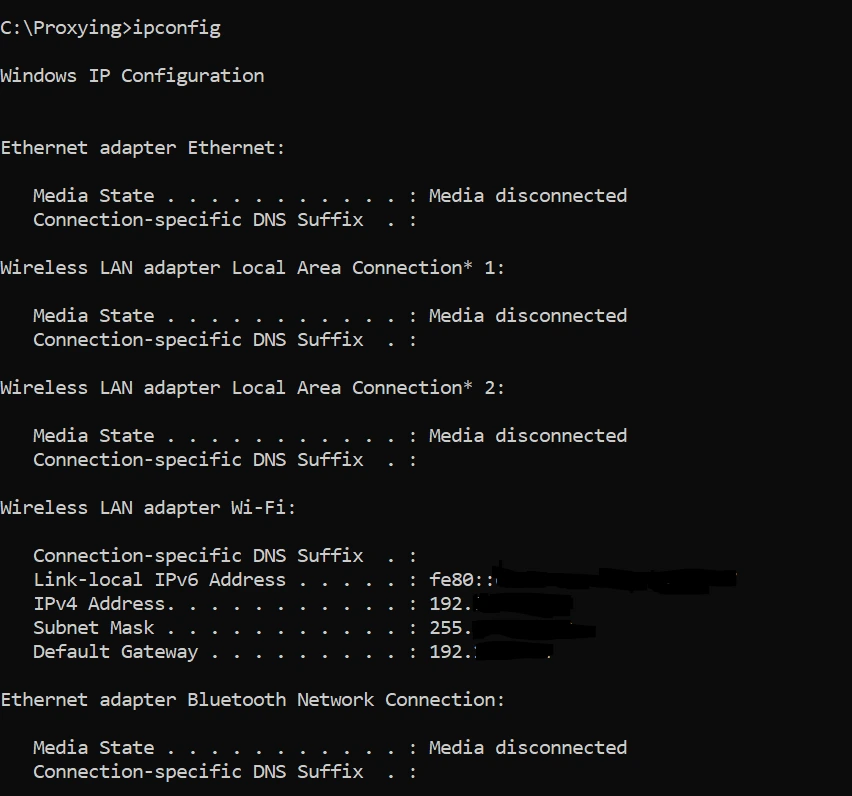
After running the command, you will see several network details displayed on the screen. Look for the line labeled IPv4 Address under your active network adapter. This number is your private IP address within your local network.
How to Check Your IP Address Using Command Line Tools
For tech-savvy users, command-line tools make it easy to find your public IP address. For instance, using curl, you can type:
curl ifconfig.me
This command returns your public IP address directly in the terminal. It’s particularly useful for developers, system administrators, or anyone using remote servers and proxies.
Tips for Protecting Your IP Address
Knowing your IP address is important, but protecting it is equally crucial. Your IP can reveal your location and other sensitive information, so consider these privacy tips:
- Use a VPN to mask your real IP and encrypt your internet traffic.
- Use good proxies like Proxying for browsing or scraping tasks to hide your original IP.
- Avoid sharing your IP publicly or on untrusted platforms.
- Regularly check your public IP to ensure it hasn’t been exposed.
By taking these precautions, you can stay safer online and reduce the risk of tracking or unauthorized access.
Conclusion
Finding your IP address is a simple yet important task that helps with troubleshooting, network configuration, and online privacy. Whether you use an online tool, system settings, or command-line methods, knowing your IP ensures you have better control over your internet connection and digital security.