

Quick Read
This guide explains how to integrate Proxying residential proxies with BitBrowser for managing isolated browser profiles and multiple accounts. You’ll learn how to add your Proxying credentials, create a BitBrowser profile, test the proxy connection, and configure country targeting and sticky sessions. It also covers best practices for maintaining consistent sessions, matching proxy locations, and avoiding common configuration issues. By the end, you’ll have a clear setup for running BitBrowser profiles with stable residential IPs.
Integrate Proxying Residential Proxies with BitBrowser
Managing multiple online accounts in 2026 requires more than just separate logins. Platforms now track browser fingerprints, IP behavior, and session patterns to detect unusual activity.
By combining BitBrowser with Proxying residential proxies, you create a more secure setup. BitBrowser handles browser fingerprint isolation, while Proxying ensures each account operates from a clean, location-specific IP.
What is BitBrowser?
BitBrowser is an anti-detect browser designed to help users manage multiple accounts without linking them together. It creates separate browser profiles, each with its own digital fingerprint, making it useful for e-commerce account management, social media automation, affiliate marketing, ad verification, and web scraping workflows.
Each profile runs in isolation, helping reduce the risk of account bans or detection.
Why Use Proxying Residential Proxies with BitBrowser?
Using a multi-profile browser without proxies limits its effectiveness. Platforms don’t just track browser data; they also analyze IP addresses and location consistency.
Here’s how Proxying improves your setup:
Reduce Detection Risk
Residential IPs come from real users, making them more trustworthy than datacenter IPs. This helps your activity appear more natural and reduces the chances of triggering anti-bot systems. When combined with proper browser fingerprinting, your sessions closely resemble genuine user behavior.
Maintain Consistent Sessions
Frequent IP changes can trigger verification checks or forced logouts. With session control, you can keep the same IP for longer periods, allowing accounts to build trust over time. This is especially important for platforms that monitor login consistency and session stability.
Enable Geo-Targeting
You can match your IP location with your target region, which is important for localized platforms and ads. This ensures that content, pricing, and search results align with the intended audience, improving accuracy in testing and campaign performance.
Keep Accounts Isolated
Assigning a unique proxy to each profile ensures accounts don’t get linked through shared IP activity. This separation reduces the risk of chain bans, where one flagged account affects others operating on the same network.
Step-by-Step: Connect Proxying to BitBrowser
Setting up Proxying inside BitBrowser is simple. Follow these steps carefully:
1. Log in to Proxying
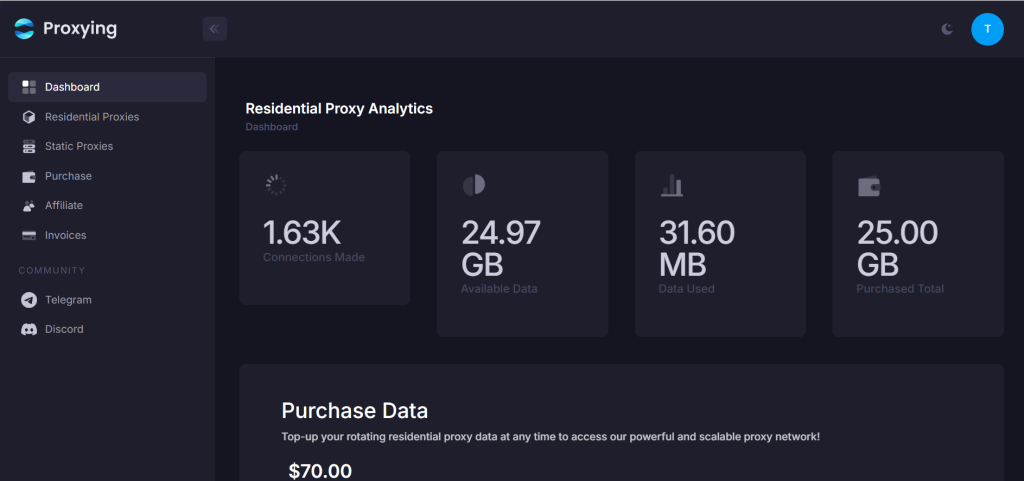
Go to your Proxying dashboard and log in to your account. From there, you can access your proxy credentials.
2. Get Your Proxy Details
Use the following base configuration:
- Host: proxy.proxying.io
- Port: 8080
- Username: Your Proxying username
- Password: Your Proxying password
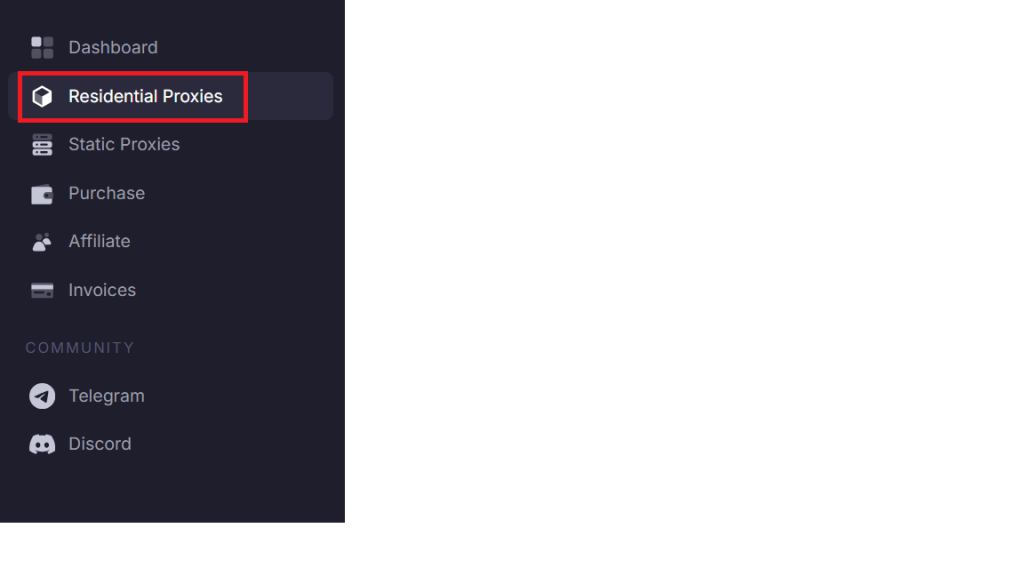
To find your proxy username and proxy password in the Proxying dashboard, click on Residential Proxies in the left panel.
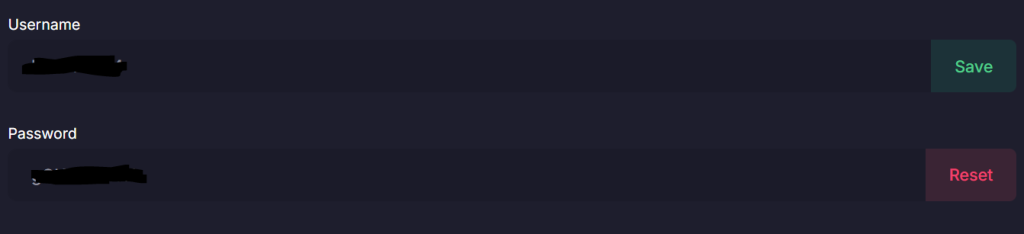
Scroll down to find your username and password.
3. Create a New Browser Profile
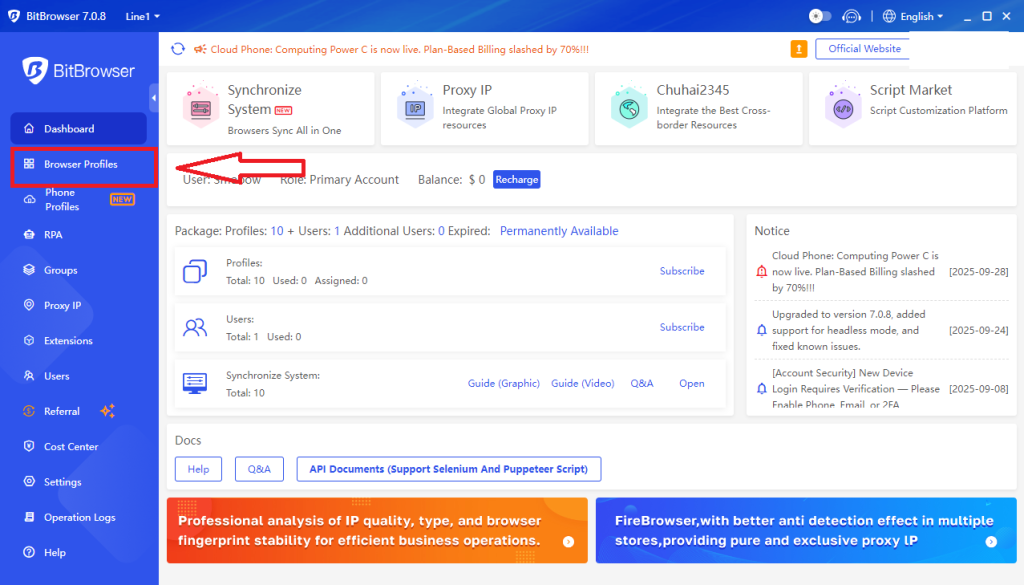
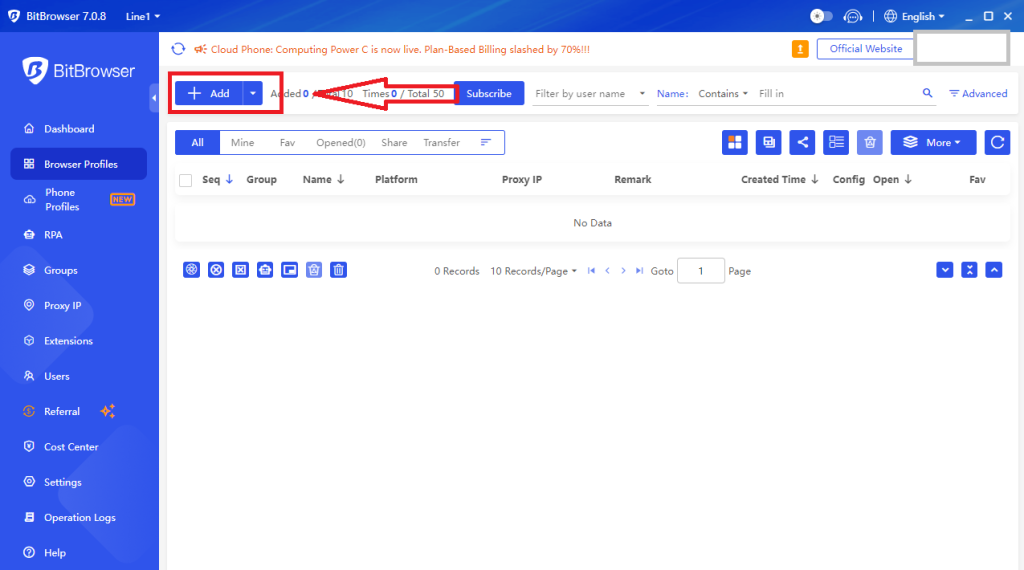
Launch the browser and in the left-hand navigation panel, click “Browser Profiles” to access your profile list.
Fill in basic details like name and group. Scroll down to the proxy settings section.
4. Create a New Profile
Click the blue “Add” button in the top-right area of the Browser Profiles page to open the profile creation form.
5. Fill In the Basic Profile Information
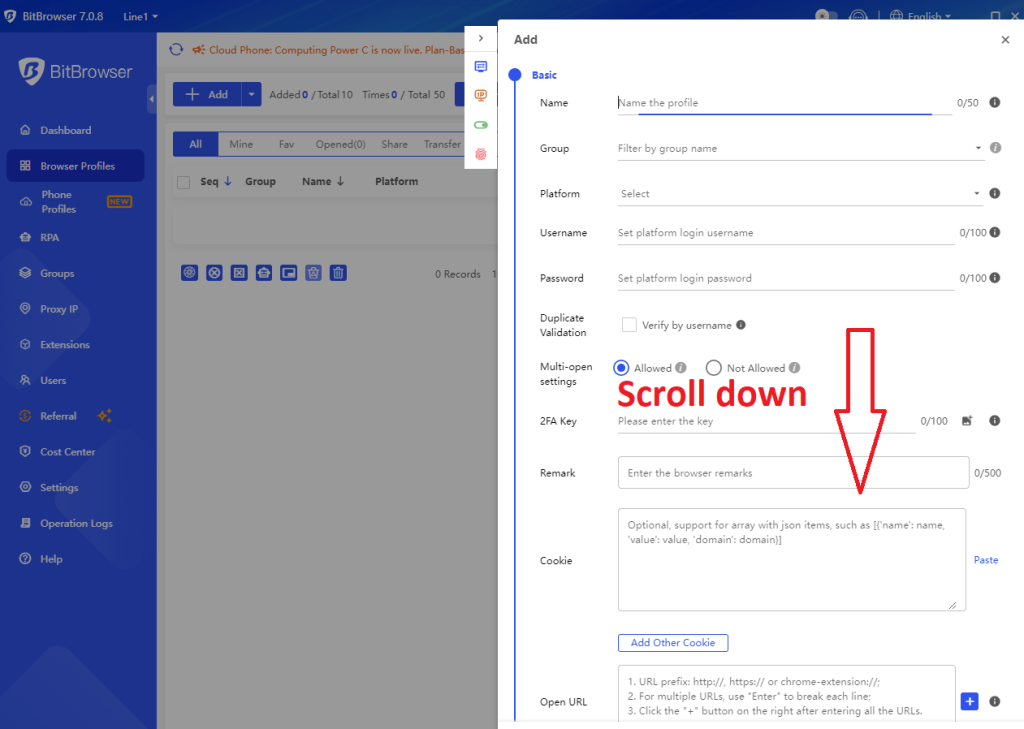
Complete the core profile fields:
- Name: Use a descriptive label such as “proxying.io, US, Profile 1” for easy identification
- Group: Assign the profile to a logical group (by client, platform, or campaign) to keep your workspace organised
- Platform: Match the target website category so BitBrowser applies appropriate fingerprint optimisations
- Multi-open: Set to “Allowed” if you need to run this profile simultaneously alongside other active profiles
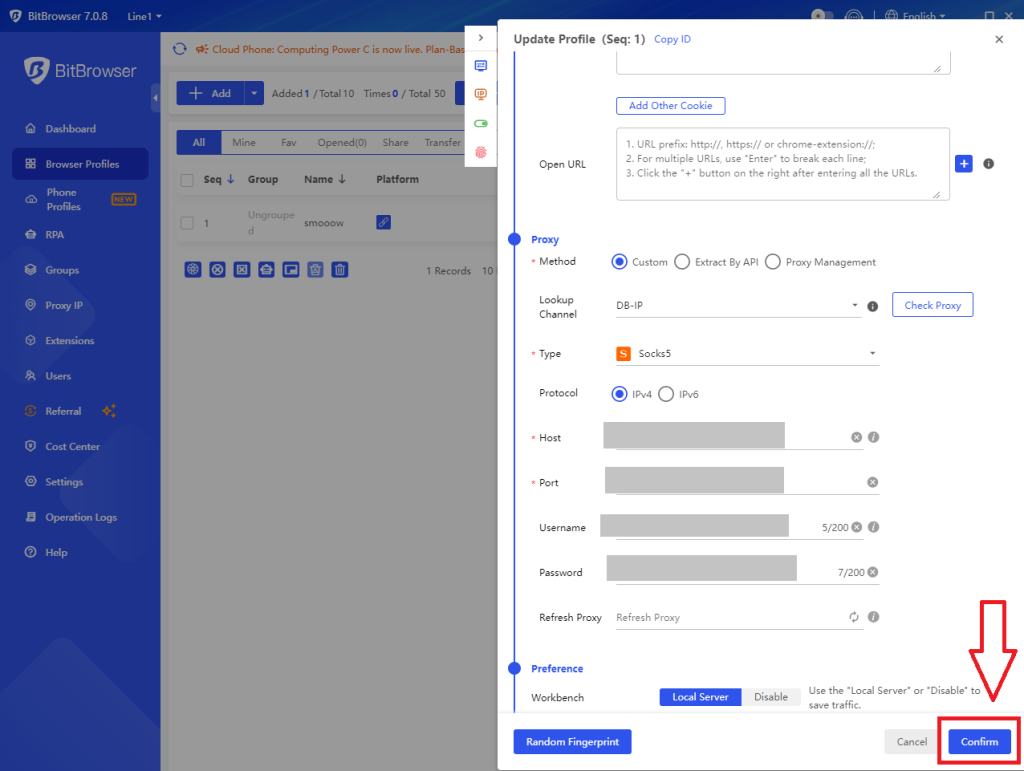
6. Add Proxying Residential Proxies
Enter the following:
- Method: Custom
- Type: HTTP / HTTPS / SOCKS5
- Host: proxy.proxying.io
- Port: 8080
- Username: Your Proxying username
- Password: Your Proxying password
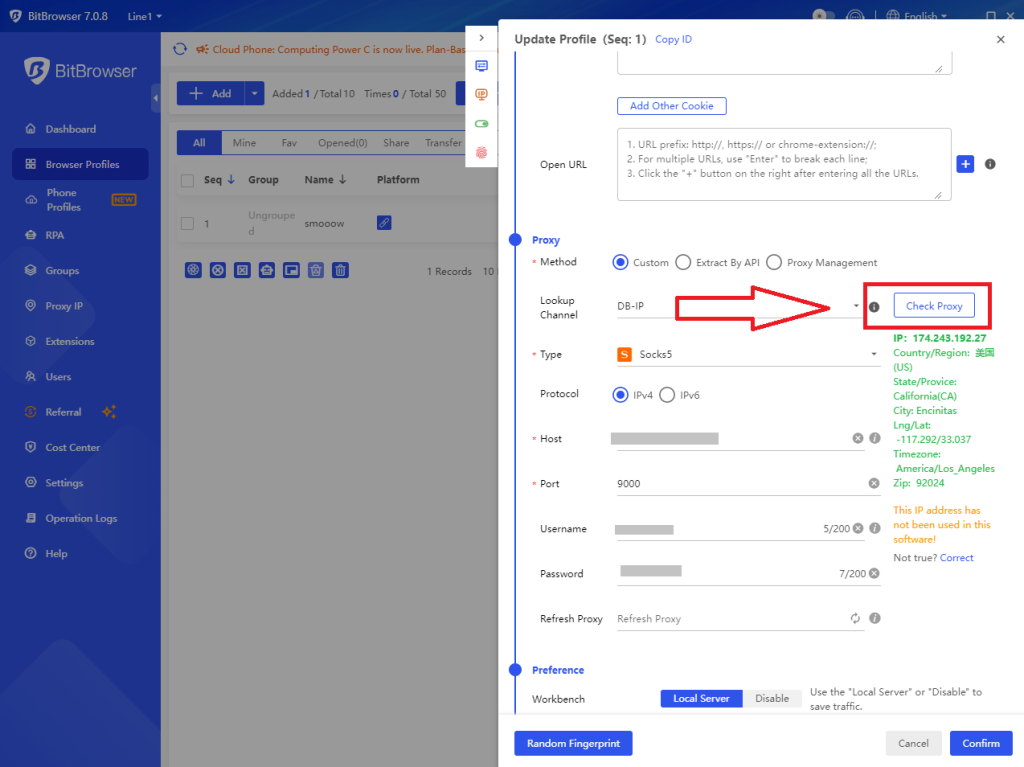
7. Test the Proxy Connection
Click “Check Proxy“. BitBrowser queries the configured endpoint and returns the resolved IP address along with latency. A green confirmation means the proxy is live and correctly routed through Proxying.
8. Save the Profile
Click “Confirm” to save all settings. Your new profile now appears in the Browser Profiles list, ready to launch.
Advanced Targeting & Session Control
Proxying allows you to customize behavior directly through the username.
Country Targeting
To assign a country-specific IP:
customer-password-country-USSession Control
Sticky Session (up to 10 minutes):
customer-password-sessionID_lifetime-10Extended Session (up to 24 hours):
customer-password-sessionID_lifetime-1440Combine Targeting + Session.
You can combine both:
customer-password-country-US-sessionID_lifetime-30Best Practices
Session Management
Use sticky sessions for each account to maintain stability, such as sessionID_lifetime-1440 for long sessions. Avoid reusing session IDs across different accounts on the same platform. Match session length to use case; short sessions (15–30 minutes) work better for social media, while longer sessions are suitable for e-commerce workflows.
Geolocation Consistency
Always align your browser timezone with the proxy country (e.g., America/New_York for US proxies). Use country targeting in the username when working with region-specific accounts. Before going live, verify your setup using at least two IP-checking tools.
Resource Management
Monitor bandwidth usage regularly since residential proxies are billed per GB. Use residential IPs for account operations and datacenter proxies for bulk tasks like scraping or monitoring. Test new configurations on a small scale before full deployment to avoid issues.
Best Practices
To maintain stable performance and reduce detection risks, always use one proxy per account to avoid overlap in IP activity. It’s equally important to match the proxy location with the account’s intended region so that behavior appears natural.
Avoid switching IPs too frequently, as this can trigger verification checks or suspicious activity alerts. For login-based platforms, using sticky sessions helps maintain consistency. Additionally, always test your proxies before using them in active workflows to prevent unexpected issues.
Conclusion
Integrating Proxying residential proxies with BitBrowser helps create a more secure and reliable multi-account setup. With proper configuration, you can reduce detection risks, maintain stable sessions, and manage accounts more effectively.