
I built my first LinkedIn scraper for a client. They wanted to track hiring trends. They wanted to know which companies were quietly hiring before the news broke.
It worked well for four days. Then every request hit a login wall. Even pages that don’t normally need a login started blocking me.
That’s when I learned how seriously LinkedIn treats automated traffic. This guide covers two things: how to write the scraper, and how to avoid getting blocked. Both matter just as much.
If you’ve never scraped LinkedIn before, the code is the easy part. You’ll use Requests, BeautifulSoup, and maybe Selenium for pages that need JavaScript. None of it is exotic. The hard part is staying under the radar long enough to collect real data. LinkedIn’s detection systems are tough, even by scraping standards.
Is It Legal to Scrape LinkedIn Job Listings?
Short answer: It’s complicated. I’m not a lawyer, so treat this as practical advice, not legal advice.
Scraping public job posts sits in a gray area. The rules shift by country. They also depend on how you access the data.
Scraping content behind LinkedIn’s login wall is different. That breaks LinkedIn’s User Agreement. Courts don’t fully agree on whether that alone makes it illegal or just a broken contract.
Here’s what I do in practice:
- Stick to public job listings that don’t need a login.
- Skip personal profile data linked to those listings.
- Respect rate limits, even when I could go faster.
- Check LinkedIn’s robots.txt before scraping a new URL pattern.
None of this makes you bulletproof. But it keeps you away from the riskiest kind of scraping.
Tools You’ll Need
Python libraries. Use requests for simple HTTP calls. Use BeautifulSoup4 to parse static HTML. Use Selenium for pages that load with JavaScript or need scrolling. Use Pandas to clean and export your data.
A browser driver. You’ll need ChromeDriver or GeckoDriver, matched to whichever browser Selenium controls. A version mismatch here causes more silent failures than anything else in this stack.
Proxies. These aren’t optional once you scrape more than a few pages. LinkedIn blocks single IPs fast. Residential proxies hold up better than datacenter proxies here, since LinkedIn’s systems flag known datacenter IP ranges quickly.
Optional: a no-code tool. Tools like Octoparse or Apify can do this work for you. They’re good for one-off projects. If you scrape often and want full control, write your own code instead.
Step-by-Step LinkedIn Job Scraping With Python
Step 1: Install Dependencies
pip install requests beautifulsoup4 selenium pandasStep 2: Load the LinkedIn Jobs Page
LinkedIn’s job search page loads content with JavaScript. A plain requests.get() call won’t capture all of it. Selenium handles this better. Route it through a proxy from the start. That keeps your scraping IP separate from your normal browsing.
from selenium import webdriver
from selenium.webdriver.common.by import By
from selenium.webdriver.support.ui import WebDriverWait
from selenium.webdriver.support import expected_conditions as EC
options = webdriver.ChromeOptions()
options.add_argument("--proxy-server=http://username:password@proxy_host:port")
driver = webdriver.Chrome(options=options)
driver.get("https://www.linkedin.com/jobs/search?keywords=data%20engineer&location=Remote")
WebDriverWait(driver, 15).until(
    EC.presence_of_element_located((By.CLASS_NAME, "jobs-search__results-list"))
)Step 3: Parse Job Details
Once the page loads, hand the HTML to BeautifulSoup. Pull out the fields you need. LinkedIn changes its class names often, so treat the selectors below as a starting point. Check them against the live page before you rely on them.
from bs4 import BeautifulSoup
soup = BeautifulSoup(driver.page_source, "html.parser")
job_cards = soup.find_all("div", class_="base-card")
jobs = []
for card in job_cards:
    title = card.find("h3", class_="base-search-card__title")
    company = card.find("h4", class_="base-search-card__subtitle")
    location = card.find("span", class_="job-search-card__location")
    link = card.find("a", class_="base-card__full-link")
    jobs.append({
        "title": title.get_text(strip=True) if title else None,
        "company": company.get_text(strip=True) if company else None,
        "location": location.get_text(strip=True) if location else None,
        "url": link["href"] if link else None,
})Step 4: Handle Pagination and Scroll
LinkedIn loads more jobs as you scroll. It doesn’t use normal page numbers. Use a short scroll loop with a pause between each step. This gives the page time to load new job cards. The pause also acts as basic rate limiting, so you’re not hammering the endpoint.
import time
last_height = driver.execute_script("return document.body.scrollHeight")
for _ in range(10):
    driver.execute_script("window.scrollTo(0, document.body.scrollHeight);")
    time.sleep(2)
    new_height = driver.execute_script("return document.body.scrollHeight")
    if new_height == last_height:
        break
last_height = new_heightStep 5: Export Job Data to CSV or JSON
import pandas as pd
df = pd.DataFrame(jobs)
df.to_csv("linkedin_jobs.csv", index=False)
df.to_json("linkedin_jobs.json", orient="records")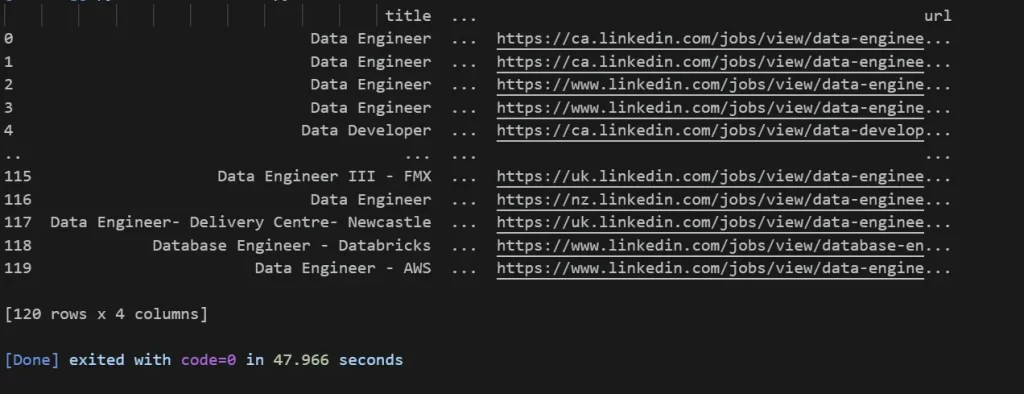
If you’re scraping more than a page or two, rotate your proxy between batches. Don’t run the whole session on one IP. I’ve also had better luck spacing out scroll passes with random delays. A fixed two-second pause every time can look robotic. LinkedIn’s rate limits seem to notice patterns, not just raw speed.
LinkedIn API vs Web Scraping: Which Is Better?
LinkedIn does have official APIs. But most job-data use cases need special partner approval. The public endpoints don’t show most of what you see on the job search page.
For most people, this isn’t really a choice. The API path just isn’t open to you. Scraping becomes the only practical option.
If you can get API access through a real partnership, take it. It’s stable and sanctioned. You won’t need to fix broken selectors every time LinkedIn changes its design. Scraping is the fallback for everyone else. It comes with real costs: more upkeep, more risk of getting blocked, and the chance that a site update breaks your code without warning.
Analyzing and Using the Scraped Job Data
A spreadsheet of job titles isn’t insightful by itself. The value shows up once you group the data. A few things worth checking:
Hiring trends by region or company. Group listings by location or employer. Track how posting volume changes over time. This is usually the real signal people are after.
Skill frequency. Search job descriptions for repeated keywords. This shows what skills are actually in demand, not just what job titles suggest.
Salary ranges, where listed. More postings show pay ranges now, thanks to new transparency laws. Pull this out separately, since coverage is still spotty.
Pandas can handle grouping for most dataset sizes. For charts, Matplotlib works fine for quick internal use. Use Tableau or a similar tool if you plan to share results with other people.
Troubleshooting Common Issues
Getting redirected to a login page mid-scrape. This usually means your session got flagged. It doesn’t mean the page truly needs a login. Check if you’ve been using the same IP too long. That’s the most common cause.
Selectors suddenly return nothing. LinkedIn changes class names often. Sometimes it’s just a temporary A/B test. Check the page by hand before you assume your whole scraper broke. Half the time it’s one renamed class, not a full redesign.
Selenium hangs on page load. This is usually a proxy problem, not a LinkedIn problem. Test your proxy on its own with a plain requests call first.
Scroll loop exits after one pass. The scroll-height check can trigger a false “done” signal if the page hasn’t finished loading yet. Increase the pause between scrolls before you assume you’ve hit the end of the results.
Job data comes back incomplete. LinkedIn shows different markup depending on login state, location, and account signals. If you’re scraping at scale, plan for missing fields. Don’t assume every job card has every field filled in.
To Wrap Up
LinkedIn job scraping with Python isn’t hard code. It’s just Selenium, BeautifulSoup, and pandas doing their normal jobs. What decides if your scraper lasts weeks instead of days is how you handle LinkedIn’s defenses: rate limits, IP checks, and session flags.
Get your proxy rotation right. Respect the limits around login-gated content. Do both, and your scraper will keep running long after a single-IP script gets shut out.
Want job data from more than one site? Our job scraping guide covers Indeed, Glassdoor, and company career pages too. It’s worth a look if LinkedIn is just one part of a bigger project. And if you’re not sure Selenium is worth the extra weight, read what a headless browser actually does before you commit to it.