

Quick Read
Firefox lets you configure a proxy directly through its network settings. You can use a proxy to change your visible IP, access geo-specific content, or route browsing traffic through another server. This guide walks you through configuring a Proxying proxy in Firefox, entering your credentials, and verifying the connection.
What is Firefox?
Mozilla Firefox is a free web browser known for its speed, security, and customizability. Unlike some browsers that rely heavily on built-in features, Firefox lets users modify settings, install add-ons, and configure the network options according to their specific needs. Its flexibility makes it a popular choice for both casual users and professionals who need more control over their browsing experience.
One of Firefox’s key strengths is its ability to manage proxy settings independently. This means you can route your browser traffic through a proxy server without affecting other applications on your computer.
Why Use a Proxy in Firefox?
A proxy acts as an intermediary between your device and the websites you visit. When configured in Firefox, it can make your real IP address, encrypt your traffic, and provide access to content restricted in your region. Many businesses and tech-savvy users use residential proxies to maintain anonymity while scraping data, testing applications, or browsing securely.
Using a proxy also lets you control how websites perceive your network. For example, multiple accounts can be managed without triggering security blocks, and sensitive data can be routed safely through secure servers. For these reasons, understanding how to set up a proxy in Firefox is important for users who value both privacy and functionality.
How to Configure Proxying Proxies in Firefox
Install and Launch Firefox
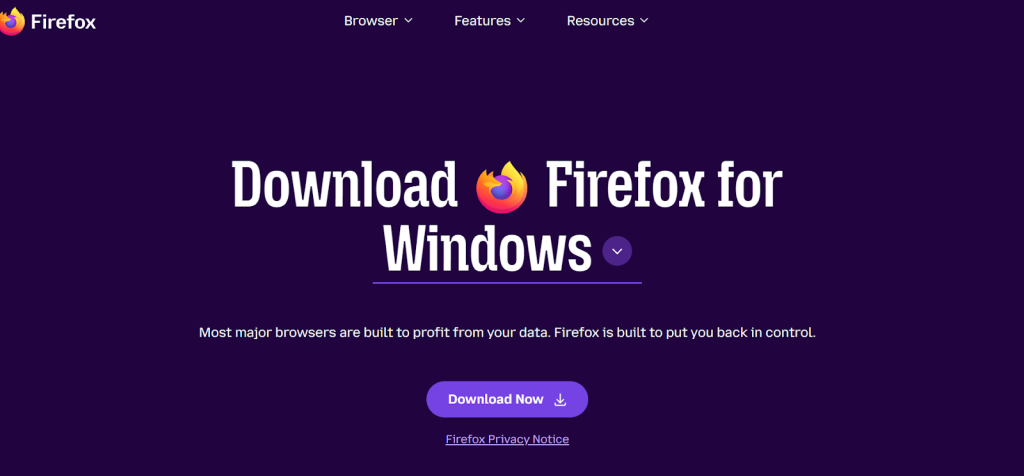
Before configuring a proxy, ensure that Firefox is installed on your computer. If not, download it from the official Mozilla website and install it.
Access Firefox Settings
Click on the menu icon (hamburger menu) located at the top-right corner of the browser window, then select Settings from the drop-down menu.
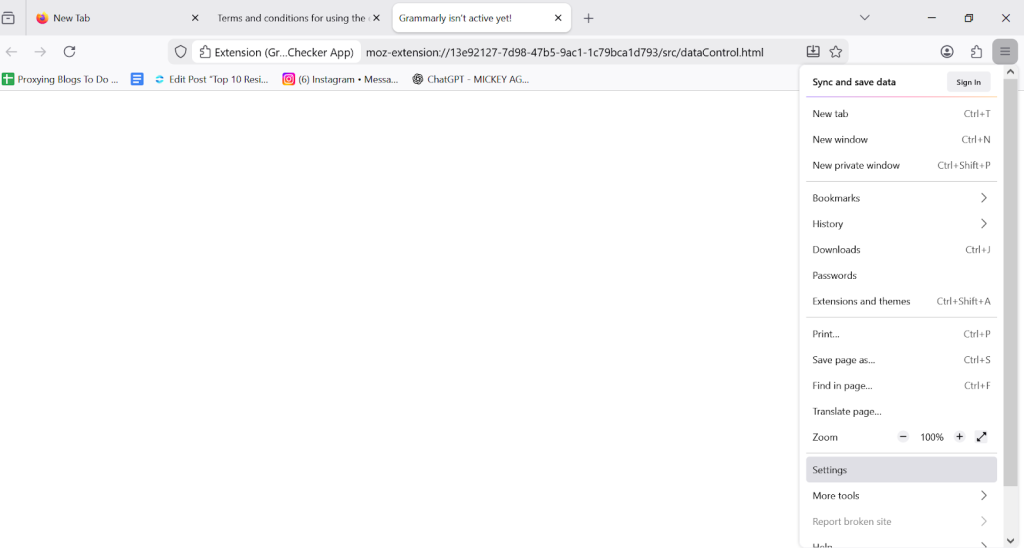
Scroll down to locate the Network Settings section. Or simply search for it in the search bar.
Click on the Settings button to open the proxy configuration dialog box.
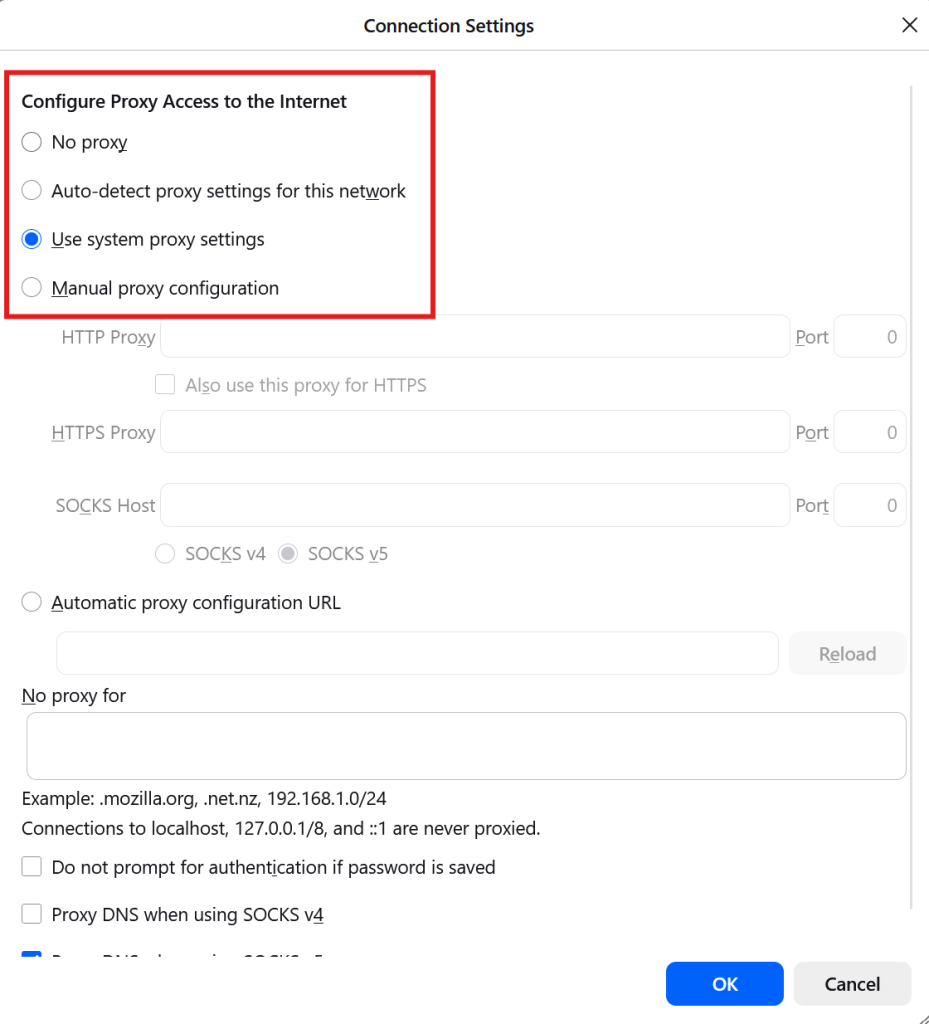
Here, Firefox provides several options, including no proxy, auto-detect settings, or manual configuration. Selecting the right option depends on the type of proxy you are using and the level of control you want.
Select Manual Proxy Configuration
Choose Manual proxy configuration to enter your proxy details.
Manual configuration lets you specify the proxy server address, port number, and whether the same proxy should be used for HTTP, HTTPS, and FTP connections. Make sure you enter the correct details.
Enter Proxy Credentials
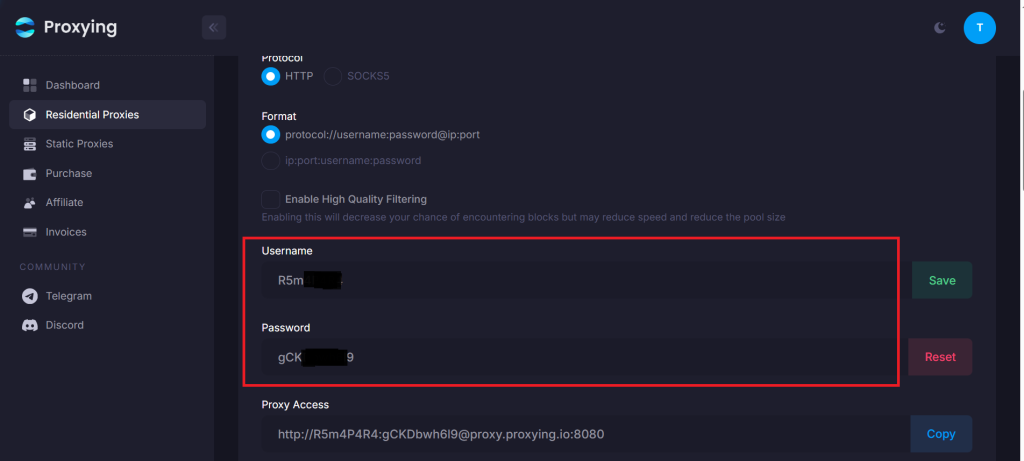
Input the proxy details provided by your proxy provider:
- HTTP Proxy (Host): The proxy server address
- Port: The corresponding port number
- Optional: Check “Use this proxy for all protocols” if required.
Note: Incorrect entries can prevent you from connecting, so double-check the information before saving.
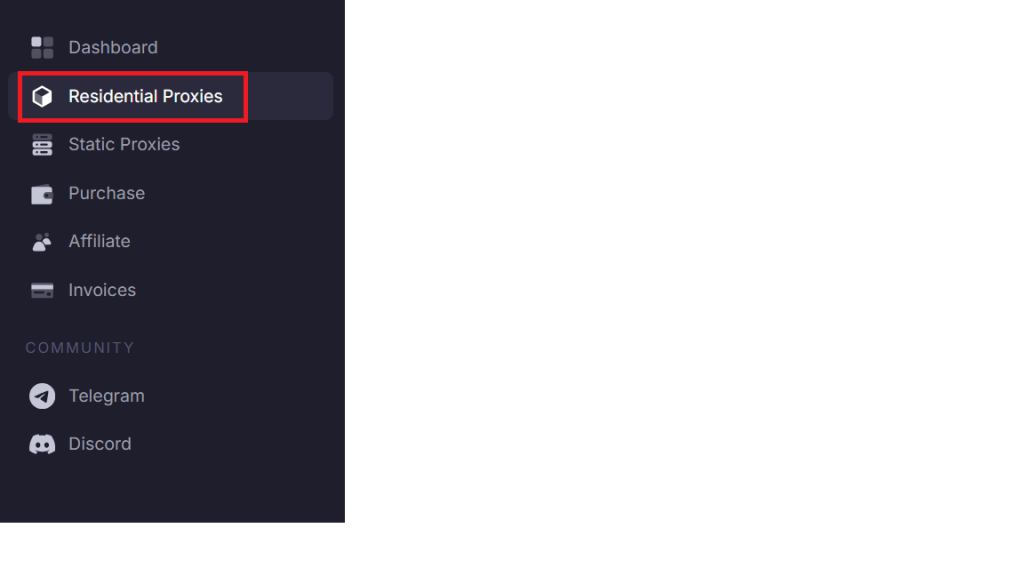
To find your proxy username and proxy password in the Proxying dashboard, click on Residential Proxies in the left panel.
Scroll down to find your username and password.
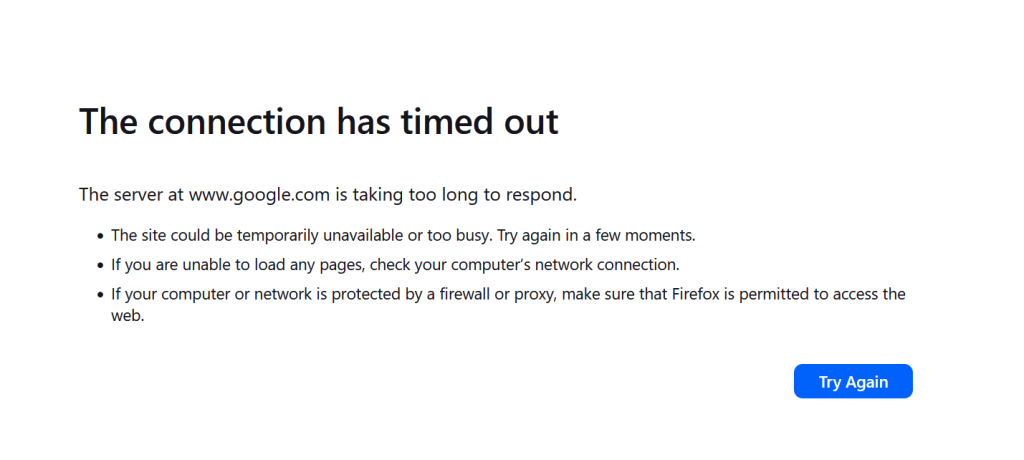
If the proxy is configured properly, you can now browse webpages. Otherwise, you’ll get a browser error like this one.
Authenticate If Needed
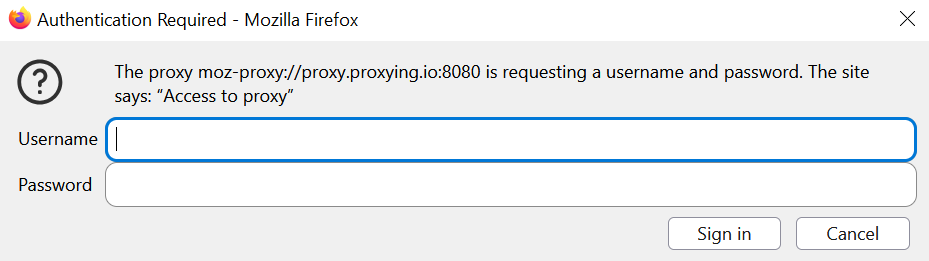
Some proxies require a username and password. Firefox will prompt you for credentials when you first attempt to browse. Simply enter the login information provided by your proxy service.
Save Settings and Restart Firefox
After entering all details, click OK to save the configuration. For best results, restart the browser to ensure that proxy settings take effect fully. Restarting helps prevent connectivity issues and ensures all browser traffic goes through the configured proxy server.
Verify Your Proxy Connection
To confirm that your proxy is working, visit a website that displays your IP address. If the IP shown matches your proxy server instead of your real IP, the setup is successful. This set ensures your traffic is routed correctly and helps you verify that the proxy is functioning as intended.
Conclusion
Firefox offers one of the most flexible and user-friendly ways to configure proxies. From enhancing privacy to accessing geo-restricted content, the browser’s built-in network settings make it easy for anyone to manage their connections effectively.