

Quick Read
cURL is a versatile command-line tool for transferring data over protocols such as HTTP, HTTPS, FTP, and SFTP. Developers commonly use it to send API requests, download files, test endpoints, debug connections, and automate web tasks. It also supports custom headers, redirects, authentication, and proxy connections, making it useful for testing different network setups. This guide explains the basics of cURL, common commands, and how to use HTTP, HTTPS, and SOCKS5 proxies with cURL.
cURL, which stands for “Client URL”, is a command-line tool and library for transferring data to or from a server using various network protocols. It is widely used in web development, system administration, and automation due to its versatility and power.
History of cURL
The history of cURL goes way back, as this command-line tool was first released in 1996, created by Danial Stenberg to transfer data over a URL, evolving from an earlier history of a tool called “HttpGet.”
The project slowly grew bigger. With its upload capabilities, the name was misleading, and a name change was necessary.
On May 18, 1998, its name was changed to “CURL”. SSL support was added, which was powered by the SSLeay library.
What Does cURL Do?
Being a command-line tool, it is used to transfer data over the Internet Protocol using a terminal. It includes:
- It makes HTTP requests (like GET, POST, PUT, DELETE) to APIs or websites.
- It can download or upload files.
- It supports many protocols: HTTP, HTTPS, FTP, SMTP, SFTP, and more.
- It’s commonly used to test APIs, debug connections, or automate web tasks.
- It can be used with most programming languages, like Python etc.
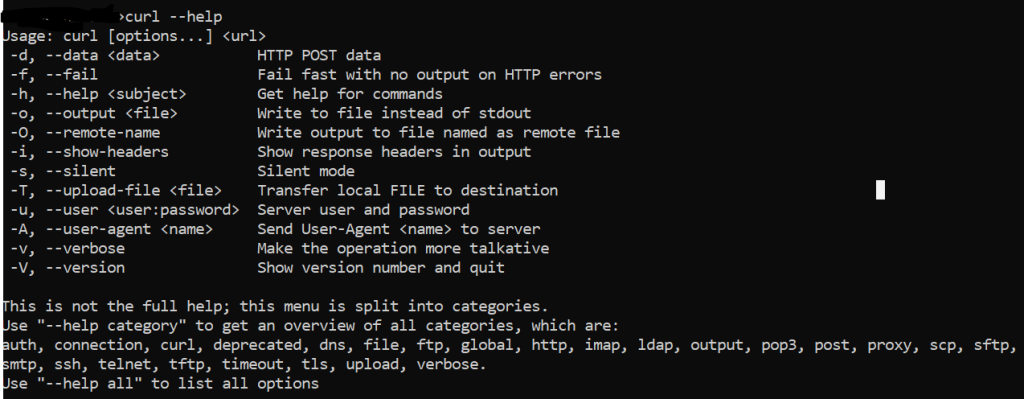
There are far too many possible cURL uses to list and explain. Luckily, we have the following command that lists out all the cURL command options with short descriptions:
curl --helpWhy Use cURL?
So, why should you use cURL? Consider these benefits of this software project:
- It is highly portable. It is compatible with almost every operating system and connected device.
- It is useful for testing endpoints to check if they are working.
- It can be verbose, providing details of exactly what has been sent or received, which is very helpful while testing the network.
- It maintains a log of every error.
- It can be rate-limited by applying some restriction to it.
How to Use cURL
Every operating system can use cURL as it’s shipped as a default in Windows, macOS, and mostly in Linux operating systems. For older systems, such as OS before Windows 10, you might need to install cURL manually.
To use cURL, simply open up the terminal and type in “curl –help”.
It will show all things as they should be
Using cURL
cURL is a powerful tool for data transfer through Internet protocols.
These are a few use cases that we will explain. As cURL was initially developed for HTTP, we can send all the usual requests (POST, GET, PUT, etc.)
Sending GET requests
To send a GET request using cURL, we will have to use the “curl” command from the command line or terminal, followed by the URL of the website.
curl https://www.proxying.io- This sends a simple GET request to Proxying
- It will return the HTML source of the homepage locally.
Saving Output to a File
If you want to save the HTML locally on your computer:
curl -o proxying.html https://proxying.ioThis downloads the homepages and saves them to a file named proxying.html.
GET requests with Custom Headers
Some sites or APIs expect browser-like headers. You can add them with -H:
curl -H "User-Agent: Mozilla/5.0" https://www.proxying.ioThis makes the request look like it’s coming from a browser, which can help when testing scraping setups.
Sending POST Requests
POST requests are used to send data to a server, for example, when submitting a form, sending login details, or pushing data to an API.
curl -X POST [https://www.proxying.io] -d "key1=value1&key2=value2"- -X POST: tell cURL to use the POST method.
- -d: sends the data (like form fields or JSON).
- https://www.proxying.io: the endpoint you are sending data to.
For more details, take a look at our guide
Example 1:
If Proxying has an endpoint, you could do:
curl -X POST https://www.proxying.io/api/test -d "name=Thomas&email=thomas@example.com"- Sends from-style data in the POST body.
- The server will receive data like:
{
  "name": "Thomas",
  "email": "thomas@example.com"
}Example 2: Send JSON Data
Most modern APIs expect JSON instead of form data.
Use -H to set the Content-Type and -d to send JSON:
curl -X POST https://www.proxying.io/api/test \
     -H "Content-Type: application/json" \
-d '{"username": "Asad", "role": "developer"}'This sends a JSON body to the endpoint.
If you’re using an API key or bearer token for authentication, include it like this:
curl -X POST https://www.proxying.io/api/test \
     -H "Authorization: Bearer YOUR_API_KEY" \
     -H "Content-Type: application/json" \
-d '{"query": "test", "limit": 10}'There are a few things at play here:
- cURL begins our command
- -d is the “data” flag for POST requests
- Quote marks (“”) begin our content statement. Note that some operating systems will only accept single quotes, while others will accept double quotes.
- Finally, the destination. URL syntax should always be exact, as cURL doesn’t automatically follow redirects.
Following Redirects
cURL doesn’t automatically follow redirects. We should add a flag if we expect it to do so. Let’s take a look at an example:
curl https://google.comOur browsers handle redirects by themselves, so we might not even notice an issue with such a request. Yet, if we send cURL to do the work, we will receive a notice that the document has been moved as it tries to connect.
To get cURL to follow redirects, we have to add a special flag “-L”.
curl -L https://google.comWe should now have received the regular answer from Google, as cURL follows the redirect from https://google.com to https://www.google.com/.
cURL Requests With Proxies
Basic GET through HTTP Proxy
curl -x http://proxy-host:3128 https://www.proxying.io- Routes your GET request through an HTTP proxy server at proxy-host:3128.
- Useful for hiding your IP or testing requests via a proxy network.
Authenticated Proxy
curl -x http://proxy-host:3128 --proxy-user "username:password" https://www.proxying.io- Connects through a proxy that requires login credentials.
- Keeps your credentials secure compared to embedding them directly in the URL.
HTTP through proxy
curl -x http://proxy-host:3128 https://www.proxying.io- Automatically creates a secure CONNECT tunnel for HTTPS connections.
- Ensures your encrypted traffic passes safely through the proxy.
SOCKS5 Proxy
curl --socks5 proxy-host:1080 https://www.proxying.io- Uses a SOCKS5 proxy, where your local system resolves the domain name.
- Ideal when you want moe flexibility and compatibility with non-HTTP proxies.
Post Through Proxy
curl -x http://proxy-host:3128 -X POST "https://www.proxying.io/api/test" \
  -H "Content-Type: application/json" \
-d '{"name":"Thomas"}' -i- Sends a JSON-formatted POST request through the proxy.
- Ideal for APIs where you must send structured data via proxy routing.
Show Full Request or Response Diagnostics
curl -v -x http://proxy-host:3128 https://www.proxying.io- Enables verbose mode to show headers, connection setup, and proxy communication.
- Helpful for debugging proxy issues or verifying successful tunneling.
Conclusion
In conclusion, using cURL with proxies allows you to control how requests are sent, secured, and routed across the web. Whether you’re using HTTP, HTTPS, or SOCKS5 proxies, curl makes it simple to handle authentication and tunnel encrypted connections, which is valuable for developers who need to test connections.