![How to Change Your MAC Address [On Windows, Android & iOS]](https://www.proxying.io/wp-content/uploads/How-to-Change-Your-MAC-Address-On-Windows-Android-iOS.webp)

The modern internet is often described as a system of addresses, but not all addresses play the same role. An IP address tells the network where to send packets across the internet. A MAC address, by contrast, identifies the network interface much closer to the ground, at the local link where your laptop, phone, router, hotel Wi-Fi access point, or airplane captive portal encounters you. If you’re dealing with an IP ban, see our guide on how to bypass an IP ban
A MAC address is not usually visible to websites across the public internet, but it can be highly visible to the local networks you join.
What Is a MAC Address?
A Media Access Control address is the hardware-level identifier assigned to a network interface. Most familiar MAC addresses are 48-bit values, written as six pairs of hexadecimal characters, such as a4:3e:60:12:32:25. The IEEE Registration Authority assigns organizational prefixes that manufacturers use to generate globally unique identifiers for network devices.
If you want to change your public IP address instead, learn how to change your IP address.
At the network level, MAC operates at Layer 2, the data-link layer. When your laptop connects to a Wi-Fi network, frames exchanged between your device and the access point use MAC addresses to identify the local sender and receiver. IP addresses operate at Layer 3 and are used for routing traffic between networks. A router may forward your packet to a website using IP addresses, but your laptop still uses a MAC address to communicate with the local access point or gateway. You can also check your current public IP address before making any network changes. Here’s how to find your IP address.
Why You Should Change Your MAC Address
Your MAC address isn’t just some random string of characters; it’s your device’s fingerprint, a unique 12-digit code that helps networks identify and communicate with your device. It’s set by the manufacturer, and typically remains fixed. But what if you want to change it? Changing your MAC address is possible, and here’s why you might want to consider it.
- Troubleshooting network problems
- Connecting to a MAC-filtered network
- Testing network configurations
- Protecting your privacy on public Wi-Fi
- Replacing a network adapter
- Avoiding MAC-based restrictions
- Managing multiple network devices
How to Change Your MAC Address on Windows
There are a couple of ways to change your MAC address on Windows 10 and 11. Some NICs let you change it directly in Device Manager, while others require you to use additional third-party software.
Via Windows Settings
If your network adapter supports it, the easiest way to change your MAC address in Windows is in Device Manager.
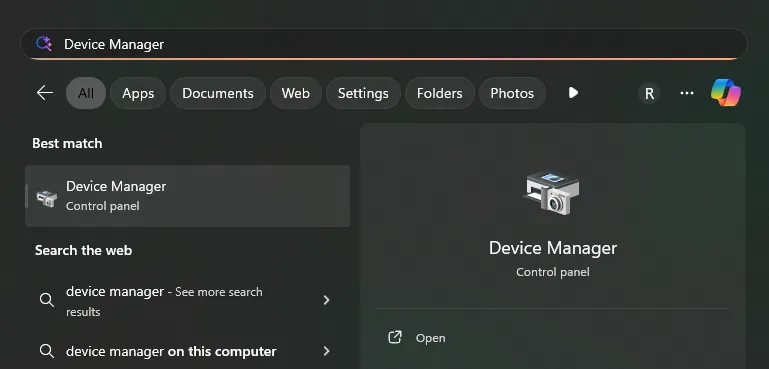
- Press the Start Button, type “Device Manager, and press Enter.
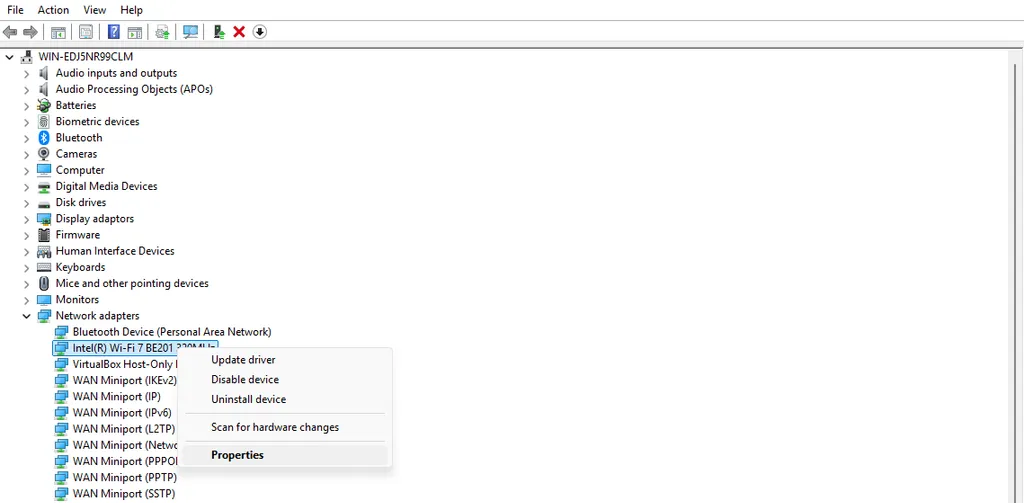
- In Device Manager, expand the “Network adapters” column and find the WiFi or Ethernet adapter you are using. Right-click the adapter and choose “Properties”.
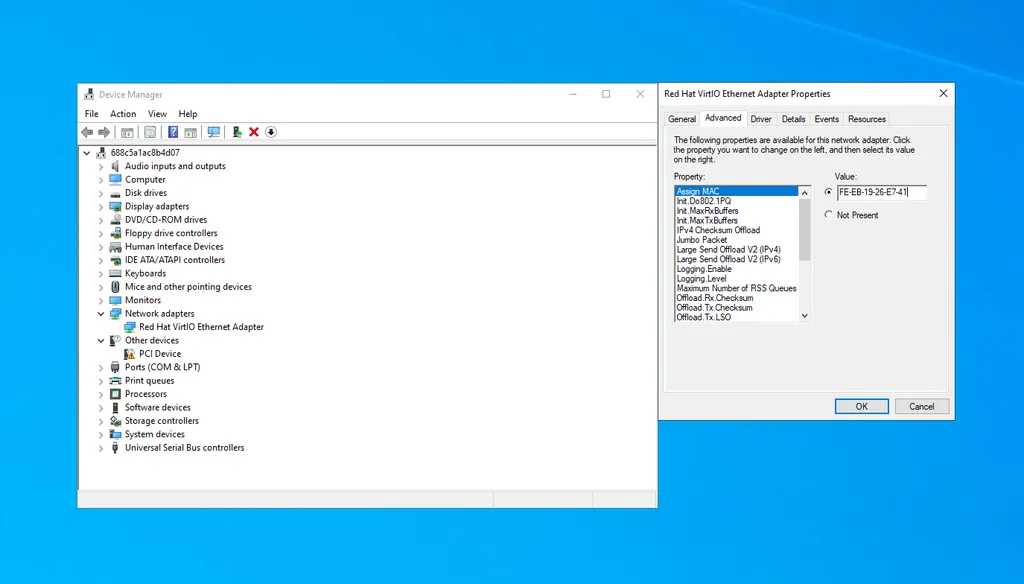
- Open the “Advanced” tab and look for an entry related to the MAC address in the property list. Change the Value to a valid MAC address (format 00-1A-2B-3C-4D-5E) and press “OK”.
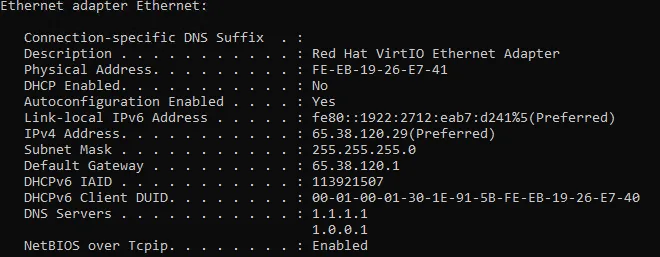
- Check that your MAC address has changed by running ipconfig /all once more.
If you can’t load webpages after this change, restart your device. Your PC may need to obtain a new IP address from your router. You can alternatively try disabling and re-enabling the network adapter in Device Manager.
Via Third-Party Software
There are several MAC address changer tools that let you change the MAC address on a PC. We can’t offer a tutorial for each and every one, so we’ll instead focus on one of the most popular, Technitium MAC address changer:
- Download, extract, and install Technitium MAC address changer
- Select the adapter you would like to change the MAC address for in the top table and then press “Random MAC Address”. On some adapters, you may need to tick “Use ’02’ as first octet” for the change to take effect.
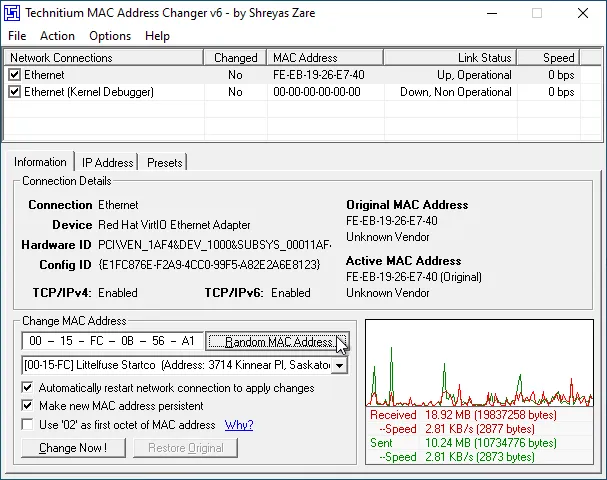
- Press “Change Now!”. Your new MAC address will now show in the “Information” section under “Active MAC Address”.
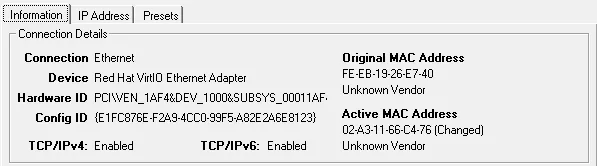
You can also type a specific MAC address you want, and you can restore your original if you run into any issues by using the “Restore Original” button.
How to Change Your MAC Address on Android
In Android. MAC randomization is enabled by default.
But in some versions, you can enable a developer option that causes the device to use a randomized MAC address when connecting to a Wi-Fi network. Here’s how to activate it:
- Enable Developer options by going to Settings > About phone or About tablet.
- Find the Build Number and tap it 7 times. If prompted, enter your device’s unlock code.
- Open Settings > Developers Options.
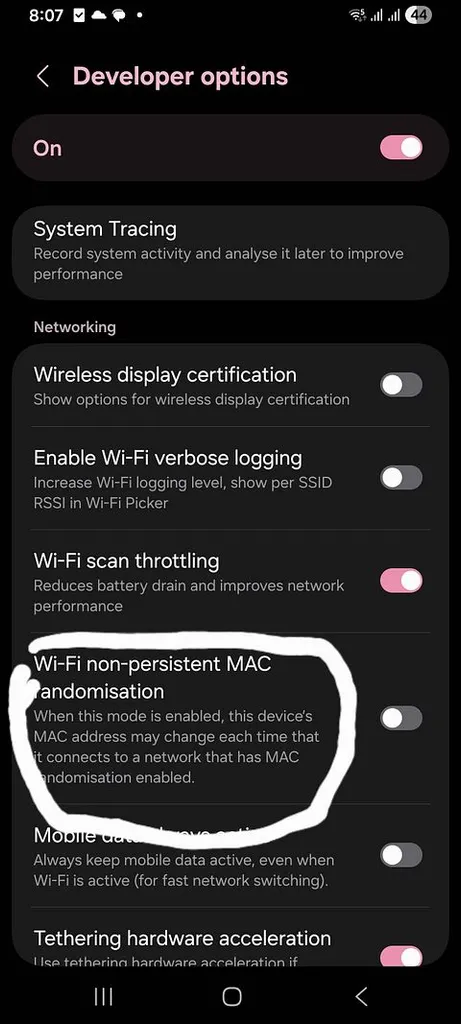
- Enable Connected MAC randomization under the Networking section.
Note: This option is not available in versions older than Android 9.
How to Change Your MAC Address on iOS
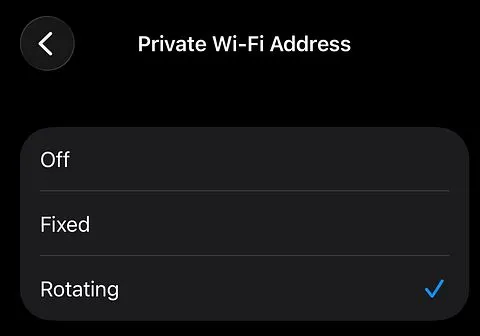
MAC randomization has been enabled by default since iOS 8 when the device is passively scanning for Wi-Fi networks. Newer iOS versions use different unique static MAC addresses for each Wi-Fi network. To change the MAC in iOS:
- Go to Settings > Wi-Fi.
- Click the info icon in front of the connected Wi-Fi.
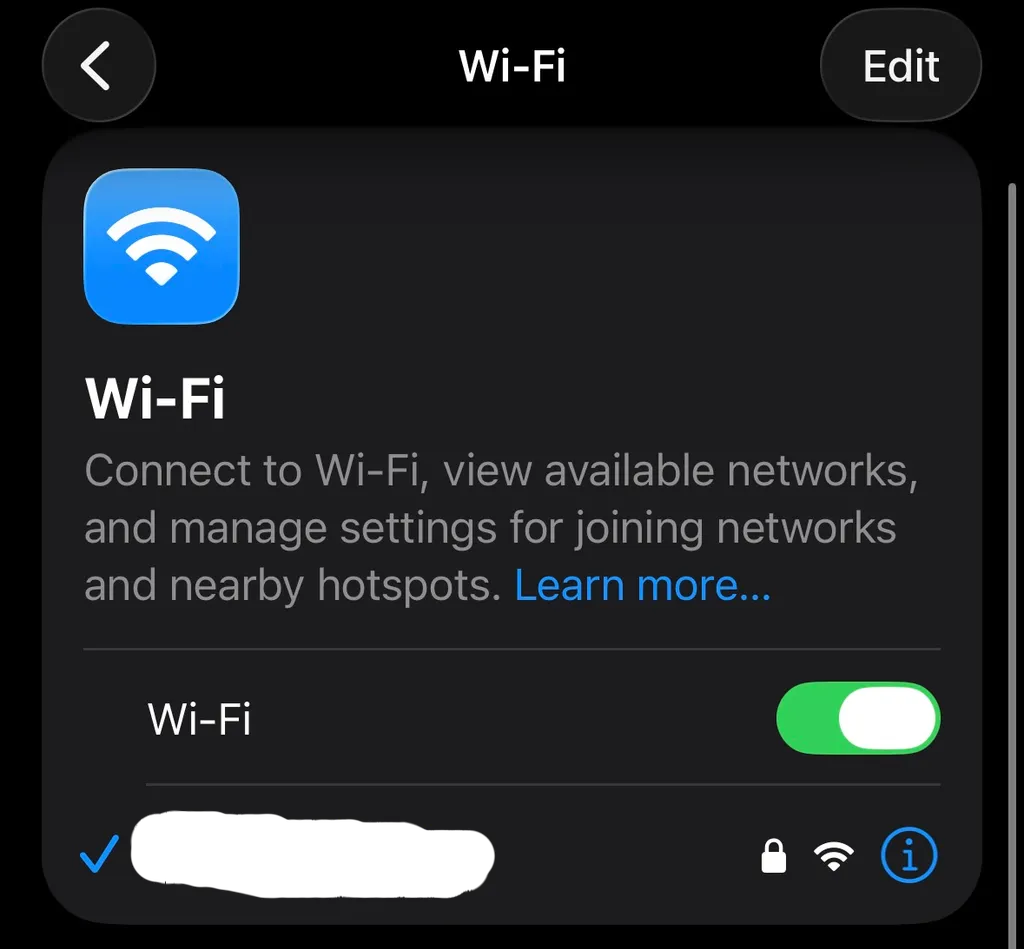
- Select the Private Wi-Fi address option and select the rotating option
What’s the Difference Between a Random and Custom MAC Address?
| Feature | Random MAC Address | Custom MAC Address |
|---|---|---|
| What it is | Automatically generated MAC address | Manually chosen MAC address |
| Control | Little to no manual control | Full control over the address |
| Main purpose | Improve privacy on Wi-Fi networks | Testing, troubleshooting, or specific network requirements |
| How it’s set | Usually through device settings | Network adapter settings or a MAC address spoofer |
| Ease of use | Easy | Requires more technical steps |
Changing a MAC address gives you more control over how your device identifies itself on a local network. Random MAC addresses are mainly useful for privacy, while custom MAC addresses are better when you need a specific one for testing or network configurations.
Can Anti-Detect Browsers Change Your MAC Address?
No, an anti-detect browser cannot change your device’s physical MAC address. Why? Because web browsers do not have operating system-level access to your network hardware. But they can help you spoof the IP and MAC addresses by using proxies from a premium provider like Proxying to protect your online identity
Learn more about what a proxy is