

Whether you are configuring a browser, setting up a web scraping project, or troubleshooting your internet connection, knowing how to find your proxy server address is essential. A proxy server acts as an intermediary between your device and the websites you visit, helping route your traffic through a different IP address. However, before we can use or update a proxy, we first need to know where its address is stored and how to access it.
In this guide, we’ll learn what a proxy server is, where to find it on different operating systems and browsers, how to verify that it’s working properly, and what to do if you can’t locate your proxy settings.
What Is a Proxy Server Address?
A proxy server address is the network location your device uses to connect to a proxy server instead of communicating directly with a website or online service. Depending on the provider, this address may be an IP address (such as 192.168.1.100) or a hostname (Such as proxy.example.com), and it’s typically paired with a port number that tells your device which communication channel to use. When you enable a proxy, your internet requests are first sent to the proxy server, which then forwards them to the destination website and returns the response. This process can help mask your IP address, improve privacy, manage network traffic, or enable access to geo-restricted content.
It’s also important to understand that a proxy server address is only one part of a complete proxy configuration. If you’re unsure whether your proxy is working correctly, test your proxy connection before troubleshooting.
Most proxy services require additional details, including a port number and, in many cases, authentication credentials such as a username and password. These settings work together to establish a successful connection.
Why You May Need to Find Your Proxy Server Address
There are several reasons why you might need to locate your proxy server address. One of the most common reasons is configuring a new application or device that requires proxy access. For example, web scraping tools, browsers, automation software, and network utilities often require a proxy address, port number, and authentication details to connect through a proxy server. If you’re switching devices or migrating settings to a new system, finding your existing proxy configuration can save time and prevent setup errors.
Another common reason is troubleshooting connectivity issues. If websites fail to load, applications cannot connect to the internet, or your proxy service stops working as expected, verifying the configured proxy address is often one of the first troubleshooting steps. Checking the proxy settings can help identify incorrect addresses, outdated credentials, or configuration conflicts between different applications. In business environments, users may also need to locate proxy settings to confirm network policies, verify traffic routing, or ensure that internet requests are being sent through the correct proxy server.
How to Find a Proxy Server Address on Different Devices
The exact steps for finding a proxy server address depend on the device and operating system you are using. Most platforms include a dedicated network or WiFi settings page where proxy configurations can be viewed or modified. If no proxy has been configured, you will typically see that the proxy setting is turned off or set to use the default network configuration. On managed work or school devices, which can limit your ability to view or change them.
Below are the instructions for finding your proxy server address on the most commonly used operating systems.
Windows
On Windows 10 and 11, proxy settings are managed through the system’s Network and Internet settings.
- Open Settings
- Select Network & Internet.
- Click Proxy from the left-hand menu
- Scroll to the Manual proxy setup section.
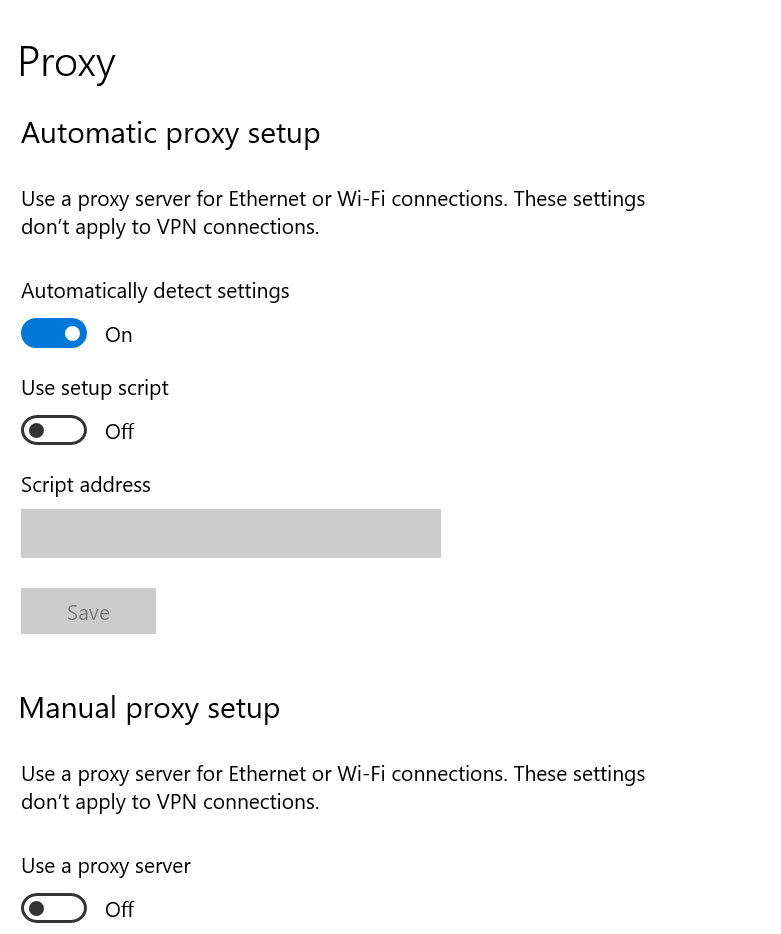
If a proxy is enabled, you will see the proxy server address along with the port number. Windows also displays whether an automatic configuration script or an automatically detected proxy is being used, which is common in workplace and school networks.
macOS
macOS stores proxy settings within the active network connection.
- Open System Settings (or System Preferences on older versions).
- Select Network.
- Choose your active Wi-Fi or Ethernet connection.
- Click Details (or Advanced), then open the Proxies tab.
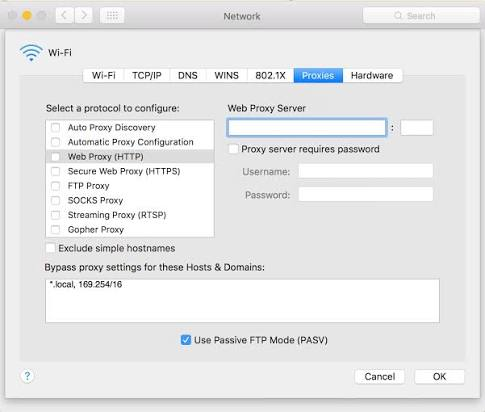
Here, you will find any configured HTTP, HTTPS, SOCKS, or GTP proxies. If a proxy is enabled, macOS displays the server address, port number, and any associated configuration options.
Android
Android devices allow proxy settings to be configured for individual Wi-Fi networks rather than for the entire device. This means you’ll only see a proxy server address if one has been manually configured for the network you’re currently connected to.
- Open Settings and tap Network & Internet or Connections (the name may vary by manufacturer).
- Select Wi-Fi and tap the connected network.
- Choose Edit or Modify Network if prompted.
- Expand Advanced options and locate the Proxy setting.
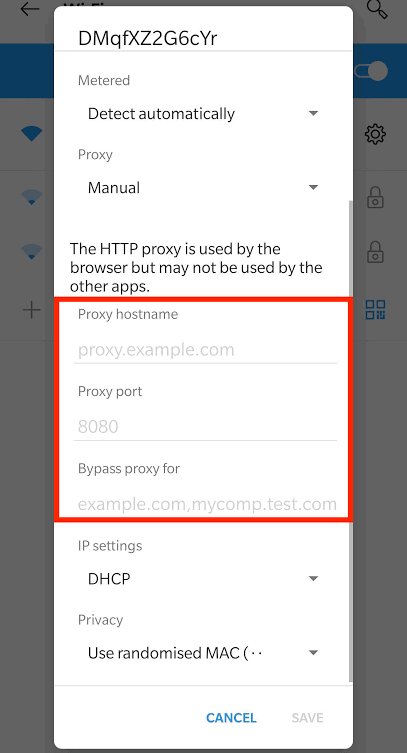
If the proxy is set to Manual, Android will display the proxy hostname or IP address along with the port number. If it’s set to None, no proxy is configured for that Wi-Fi network. Some organizations also use automatic proxy configuration (PAC), in which case you’ll see the URL of the configuration script instead of a manually entered address.
iPhone (iOS)
On iPhones and iPads, proxy settings are also configured on a per-network basis. Like Android, iOS only displays proxy information for the Wi-Fi network you’re currently using.
- Open Settings and tap Wi-Fi.
- Tap the ⓘ icon next to the connected Wi-Fi network.
- Scroll to the bottom and select Configure Proxy.
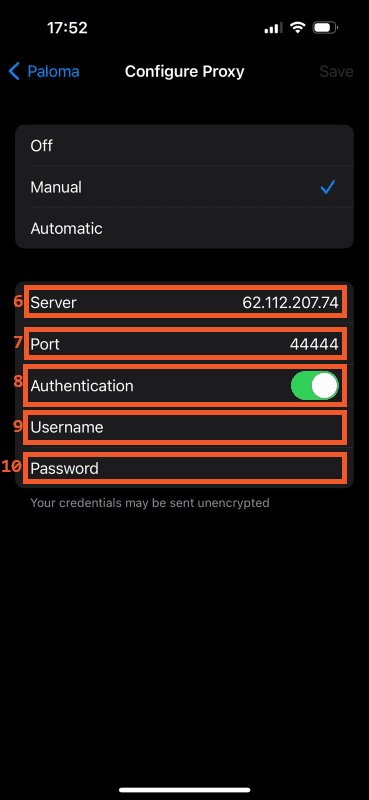
- If Manual is enabled, you’ll see the proxy server address, port number, and authentication options if required.
- If Automatic is selected, iOS displays the URL of the proxy auto-configuration (PAC) file.
- If the setting is Off, your device isn’t using a proxy for that Wi-Fi connection.
How to Find Proxy Settings in Web Browsers
Your browser may use the same proxy settings as your operating system or maintain its own independent configuration. Knowing which approach your browser follows can save time when troubleshooting connection issues or setting up a new proxy.
Google Chrome
Google Chrome doesn’t have its own built-in proxy settings. Instead, it relies on your operating system’s network configuration. Opening Chrome’s proxy settings simply redirects you to the proxy settings page in Windows or macOS, where you can view or modify the configured proxy server address. Need setup instructions? See our guide on configuring proxies in Chrome
This means that any changes you make to the system proxy settings automatically apply to Chrome. If Chrome isn’t connecting through the expected proxy, it’s worth checking whether another application or a proxy auto-configuration (PAC) script is overriding the system settings.
Microsoft Edge
Like Chrome, Microsoft Edge uses the operating system’s proxy configuration rather than maintaining separate browser settings. Selecting the proxy option in Edge opens the system’s network settings, allowing you to view the configured proxy address, port number, and any automatic configuration options.
Because Edge shares the same proxy settings as Windows or macOS, changes made at the operating system level immediately affect the browser. This makes managing proxies simpler, especially in enterprise environments where administrators configure proxy settings for all users.
Mozilla Firefox
Unlike Chrome and Edge, Mozilla Firefox allows users to configure proxy settings independently. This is useful if you want Firefox to use a different proxy than the rest of your system. Firefox also works well with residential proxies for location-based browsing
To find the proxy server address in Firefox:
- Open Settings.
- Scroll to the Network Settings section.
- Click Settings.
- Review the selected connection method.
If Manual proxy configuration is enabled, Firefox displays the proxy server address, port number, and any protocol-specific settings. If the Automatic proxy configuration URL is selected, you’ll see the URL of the PAC file instead. Choosing Use system proxy settings tells Firefox to follow your operating system’s proxy configuration.
How to Find a Proxy Server Address Using Command Line
If you prefer working with the command line, you can inspect your proxy configuration directly from the terminal instead of navigating through system menus. This approach is particularly helpful when working on remote machines, automating administrative tasks, or diagnosing network connectivity problems. Once you’ve confirmed your configuration, the next step is making sure the connection is working reliably and identifying the cause of any issues that may prevent requests from reaching their destination.
Windows
Windows provides a built-in command for viewing the system’s WinHTTP proxy configuration. Open Command Prompt or Windows PowerShell and run the command:
netsh winhttp show proxyIf a proxy is configured, the command displays the proxy server address and port number. If it returns Direct access (no proxy server), Windows isn’t using a WinHTTP proxy. Keep in mind that some applications rely on the system proxy settings instead of WinHTTP, so the output may differ depending on how the proxy was configured.
macOS and Linux
On macOS and Linux, many applications store proxy settings as environment variables. To check whether they’re configured, open Terminal and run:
env | grep -i proxyThis command lists all environment variables related to proxies, including HTTP_PROXY, HTTPS_PROXY, and NO_PROXY, if they exist. You can also check specific variables individually:
echo $HTTP_PROXY
echo $HTTPS_PROXY"If these commands return a hostname or IP address along with a port number, your terminal session or applications are configured to use that proxy. If no output appears, a proxy may not be configured through environment variables, or the application may be using its own proxy settings instead.
How to Verify Your Proxy Server Address
After locating your proxy server address, it’s a good idea to verify that it’s working correctly. This helps ensure your internet traffic is being routed through the intended proxy and that the address, port number, and authentication details are configured properly. Verifying your proxy can also help identify issues before they affect applications like web browsers, automation tools, or web scrapers.
One of the simplest ways to verify your proxy is to visit an IP checker website while connected through the proxy. If the displayed public IP address differs from your original IP address and the location of your proxy server, the proxy is working as expected. You can also test the connection by opening a website or successfully without connection errors; your proxy configuration is likely correct. If proxy server address, port number, authentication credentials, and any application-specific proxy settings.
Finding Reliable Proxy Server Information
Finding your proxy server address is only one part of setting up a reliable proxy connection. The quality of the proxy provider also plays a major role in your browsing experience, connection stability, and overall performance. Free or publicly available proxies often have limited uptime, slower speeds, and shared IP addresses that are more likely to be blocked by websites. They may also lack proper security, making them a poor choice for handling sensitive data or business-critical tasks.
If you need proxies for web scraping, market research, SEO monitoring, ad verification, or managing multiple accounts, it’s worth choosing a trusted provider that offers reliable infrastructure and clear configuration details. Proxying provides residential, datacenter, ISP, and rotating proxies with easy-to-access proxy addresses, authentication credentials, and global IP coverage. This makes it simple to configure your applications while maintaining fast, stable connections and reducing the risk of IP blocks, helping you focus on your tasks instead of troubleshooting proxy issues.
Difference Between Residential and Datacenter Proxies
Conclusion
Finding your proxy server address is a straightforward process once you know where to look, whether you’re using Windows, macOS, Android, iPhone, or a web browser. Verifying your proxy settings ensures your connection works as intended and helps prevent common configuration issues. For the best performance and reliability, pair the correct proxy configuration with a trusted provider like Proxying.