
Quick Read
This guide explains how to use Proxying proxies with Multilogin to create isolated browser profiles for managing multiple accounts. You’ll learn how to connect residential proxies, configure geo-targeting and sticky sessions, test your connection, and launch a profile. It also covers best practices for maintaining stable sessions and avoiding common issues such as proxy failures, logouts, and inconsistent locations. By the end, you’ll have a clear setup process for combining Multilogin with Proxying proxies.
What is Multilogin?
Multilogin is an anti-detection browser designed for users who need to manage multiple accounts without getting flagged. It works by creating isolated browser profiles, each with its own fingerprint, so every session appears to be from a different real user.
This is especially useful for social media management, e-commerce operations, affiliate campaigns, and large-scale automation. When you combine Multilogn with high-quality proxies, each profile operates with its own IP address and location, which is critical for avoiding account linking.
Why Use Proxying Proxies with Multilogin?
Running multiple accounts from the same IP is one of the fastest ways to trigger platform restrictions. That’s where Proxying comes in.
Proxying provides residential and mobile proxies backed by real IPs, which means your traffic blends naturally with normal user traffic. This allows you to:
Blend Into Real User Traffic and Avoid Detection Systems
Modern platforms don’t just look at IP addresses anymore; they analyze behavior, device fingerprints, and network consistency. When you combine Proxying residential proxies with Multilogin’s fingerprint isolation, each browser profile behaves like a genuine user. This makes your activity blend naturally into real traffic patterns, significantly lowering detection risk.
Build a Reliable and Long-Lasting Account Setup
Account stability depends heavily on consistency. Frequent IP switches or location mismatches often trigger verification loops and account restrictions. With Proxying, you can maintain stable, sticky sessions that keep the same IP active for longer periods. This creates a predictable environment where each account can operate safely without unnecessary disruptions.
Enable Precise Geo-Location Targeting for Any Market
Digital platforms often adjust content, ads, and visibility based on geographic location. Without accurate IP targeting, your accounts may appear unnatural or restricted. Proxying residential proxies allows you to match your IP location with your intended region, helping you operate accounts as if they are truly based in that specific market.
Keep Every Account Fully Isolated and Unlinked
One of the biggest risks in multi-account management is cross-account detection through shared IP patterns. If multiple accounts are connected to the same network identity, platforms can easily link them. By assigning a unique Proxying proxy to every Multilogin profile, you ensure complete separation between accounts, strengthening privacy and reducing the chance of bans.
Step-by-Step: Connect Proxying Residential Proxies to Multilogin
Watch the tutorial below or follow this complete step-by-step guide to quickly configure Proxying residential proxies inside Multilogin.
Since Multilogin is a premium tool, you can try free alternatives such as AdsPower or BitBrowser, with step-by-step guides available for setup.
The setup is simple, but each step must be done correctly to ensure stable, secure, and undetectable browsing sessions.
1. Install and Launch Multilogin
Start by downloading Multilogin from the official website and installing it on your system. Once installed, open the application and log in to your account. If you are a new user, complete the registration process before proceeding.
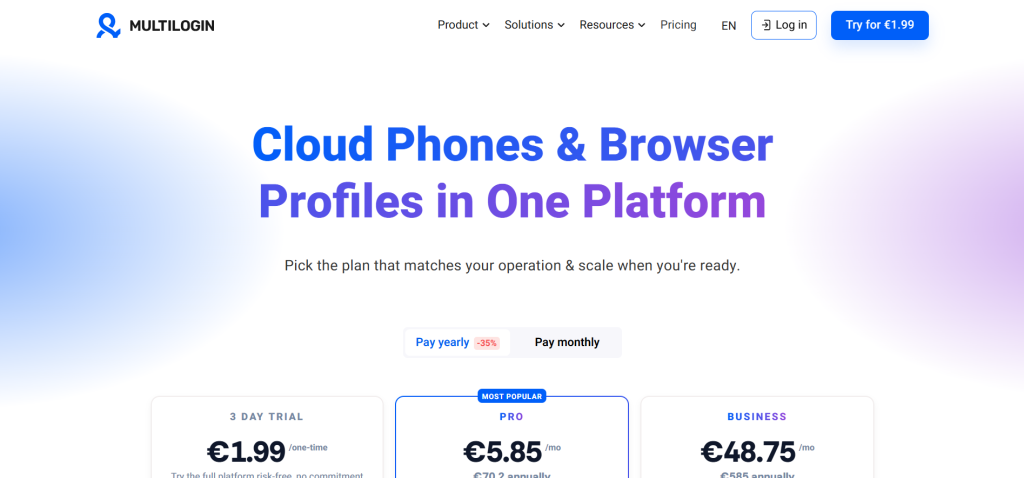
After login, you will land on the dashboard where all browser profiles are managed.
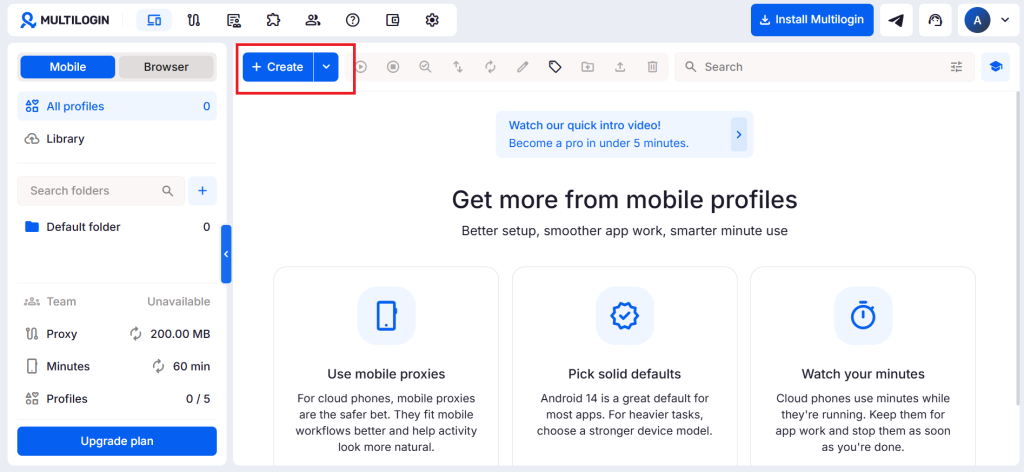
2. Create a New Browser Profile
Inside Multilogin, click on the option to create a new browser profile. This is where you define the identity of each account.
Fill in the basic details such as profile name and group selection. These fields help you organize multiple accounts efficiently.
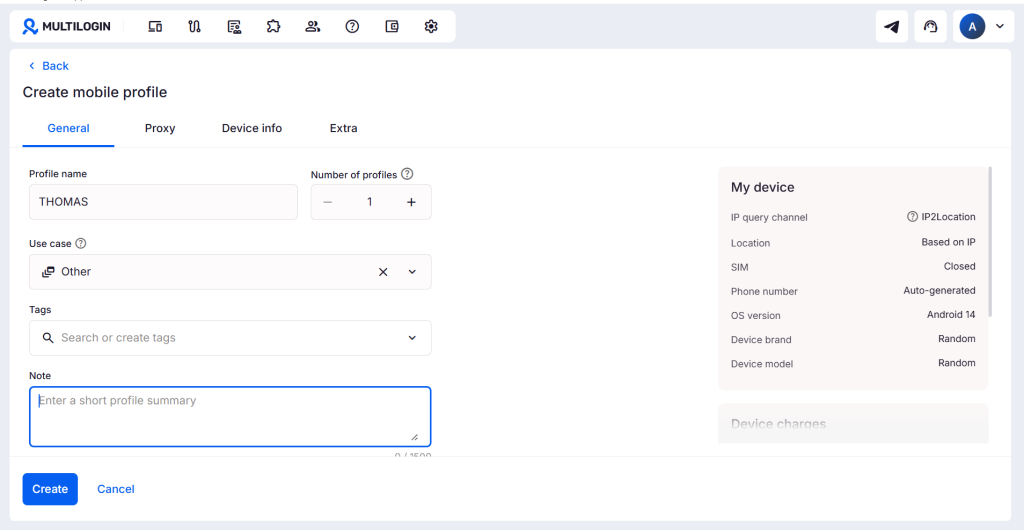
Once the basic setup is done, move to the proxy configuration section within the same profile setup screen.
3. Configure Proxying Residential Proxies
In the proxy settings section, select the correct proxy type. Proxying supports HTTP, HTTPS, and SOCKS5 connections, so choose the one that matches your configuration.
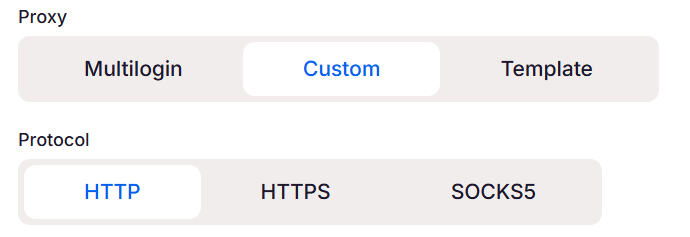
Now enter your Proxying credentials as follows:
- The host should be set to proxy.proxying.io
- The port is 8080
- Your username and password
It should be in this format: ip:port:username:password
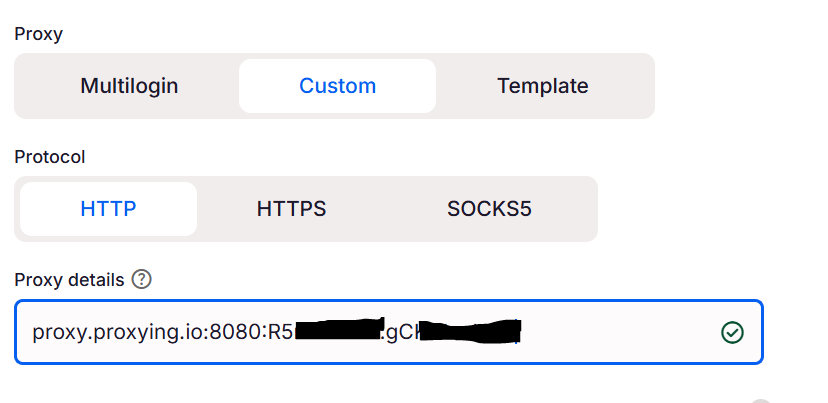
Make sure you enter the details exactly as provided.
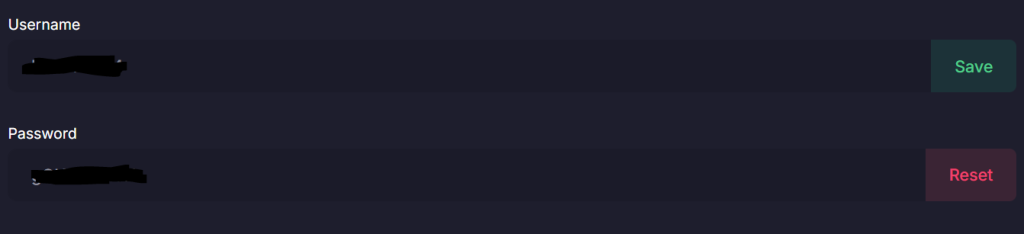
To find your proxy username and proxy password in the Proxying dashboard, click on the Residential Proxies in the left panel.
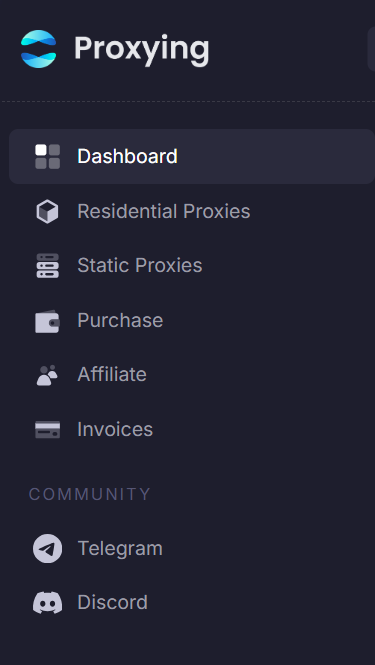
Scroll down, and you will find your username and password.
4. Use Advanced Proxy Targeting (Optional)
Proxying residential proxies allows advanced control directly through the username field, giving you flexibility without changing system settings.
If you want to target a specific country, you can structure your username like this:
customer-password-country-USThis will route your traffic through a United States residential IP.
You can replace U.S. with any supported country code depending on your target region.
5. Manage Sticky Sessions for Stability
One of the most important features in Proxying is session control, which allows you to maintain consistent IP behavior across long sessions.
For a short sticky session (up to 10 minutes), your username format would look like this:
customer-password-sessionID_lifetime-10This keeps the same IP active for a short period, ideal for quick tasks or testing.
For long-duration sessions (up to 24 hours), use:
customer-password-sessionID_lifetime-1440This ensures the same IP remains stable for an entire day, which is especially useful for account-based platforms that require consistency.
6. Test Proxy Connection
Before launching the profile, always verify the proxy connection.
Inside Multilogin, use the built-in proxy checker and click the option to test the connection. The system will validate your credentials and confirm whether the proxy is working correctly.
If everything is set up properly, you will receive a success confirmation message indicating that the connection is stable and ready for use.

7. Save and Launch the Profile
Once the proxy test is successful, save your browser profile. It will now appear in your main profile list.
Click on the profile and launch it. Multilogin will open a browser window using your assigned Proxying residential IP, creating a fully isolated browsing environment.
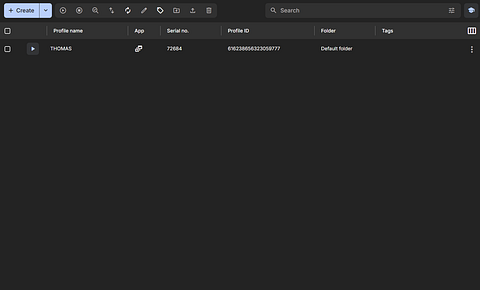
At this point, your setup is complete, and the profile is running with a unique fingerprint and dedicated proxy connection.
Best Practices for Proxying + Multilogin
To keep your setup stable and undetectable, consistency is important, so each account should always use the same proxy, especially for login-based platforms. Frequent IP changes can trigger security checks even if the proxies are high-quality. It’s also important to match your browser fingerprint with your proxy location to avoid detection from mismatched signals.
Using sticky sessions is recommended for long-running accounts because it keeps the same IP active for longer periods, ensuring stability. For scraping tasks, rotating proxies work better as they distribute requests across multiple IPs, and regular testing helps replace unstable proxies before they affect performance.
Common Issues and Fixes
Proxy Connection Failures and Credential Errors
If your proxy fails to connect, the first step is to verify your credentials, as incorrect usernames, passwords, or ports are the most common causes of connection issues.
You should also ensure that the correct proxy type is selected inside Multilogin, since mismatched settings can prevent authentication even when the details are correct.
Proxy Test Failures or Inactive IPs
When a proxy test fails, the issue is often related to an inactive or temporarily blocked IP. In such cases, switching to a different Proxying IP usually resolves the problem quickly and restores a stable connection without requiring major configuration changes.
Account Flags, Logouts, and Inconsistency Issues
Frequent logouts or account flags are typically caused by inconsistent setup patterns, such as mismatched geolocation settings, unstable proxies, or frequent IP changes. Keeping your proxy location, browser fingerprint, and session behavior properly aligned is crucial to avoid detection and ensure smooth, stable account performance.
Conclusion
Using Proxying with Multilogin creates a powerful environment for managing multiple accounts. When configured correctly, each profile operates independently, with its own identity, IP, and behavior pattern.