
There was a time when renting or buying DVDs was the only way to watch your favorite movies and TV shows. Today, streaming platforms like Netflix let you watch thousands of titles online with just a few clicks.
Netflix offers different content in different countries. In other words, your Netflix library appears different based on where you’re browsing from. Netflix uses your IP address to determine your location: a title available on Netflix in the UK may not be available if you are in the USA.
If you want to know how to change your Netflix region and bypass geo-restrictions, there are several methods you can try, including Netflix proxies.
Why Change Your Netflix Region

Accessing geo-blocked content is one of the most common reasons to change your Netflix region. But it’s not the only reason.
- To unblock geo-restricted content not available in your region
- Accessing Netflix easily while travelling abroad
- Enabling your preferred languages or subtitles
- Watching live sporting events that are not available in your country
- Tricking Netflix into believing that multiple users in different locations are using the same home IP address
How to Change Your Netflix Region [4 Simple Methods]
Using VPN Applications, Proxy Servers, Anti-Detect Browsers, and the Tor Browser are common methods of changing your Netflix region.
Unblock Netflix with a Proxy
Follow these steps to change your IP address via a proxy server:
- Click here to buy residential proxies from Proxying. Purchasing in bulk means more discounts for you.
- Now create a Proxying account to sign up (remember these credentials)
- Configure a US-targeted residential proxy on your device.
- Now open any browser and configure the proxy server using your username and password.
- Open a new tab and go to the Netflix website
- Sign in with your Netflix account credentials
- Based on the country you selected during proxy configuration, you can unlock different libraries and change your Netflix region easily.
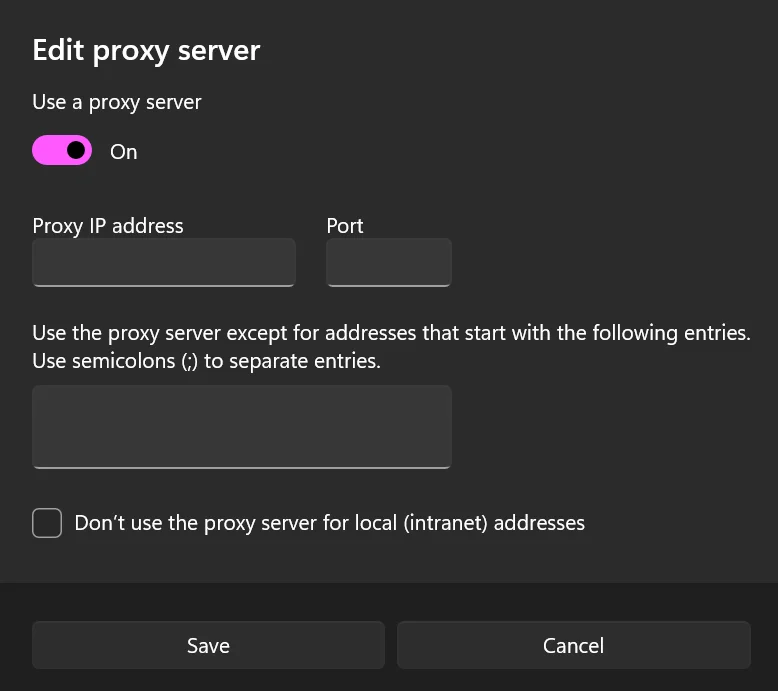
If all this sounds confusing, you can learn how to configure a proxy in the Opera or Chrome browser via our simple guides.
Note: Proxies are generally cheaper than VPNs. Also, many proxy providers, such as Proxying, offer discounts in case of bulk purchases.
Change Netflix Region with a VPN
Another common method is to download a VPN application. It allows you to access Netflix from anywhere.
- On your device, download and install a secure VPN tool, such as ExpressVPN, Nord VPN, or SuperFree VPN.
- Sign up by creating your account.
- From the home screen, go to the list of available countries
- Select your preferred region (such as Japan, UK, India, etc.)
- Now turn on the VPN connection.
- Go to the Netflix website and check the available content. Now you will see different movies and TV series depending on the country you selected
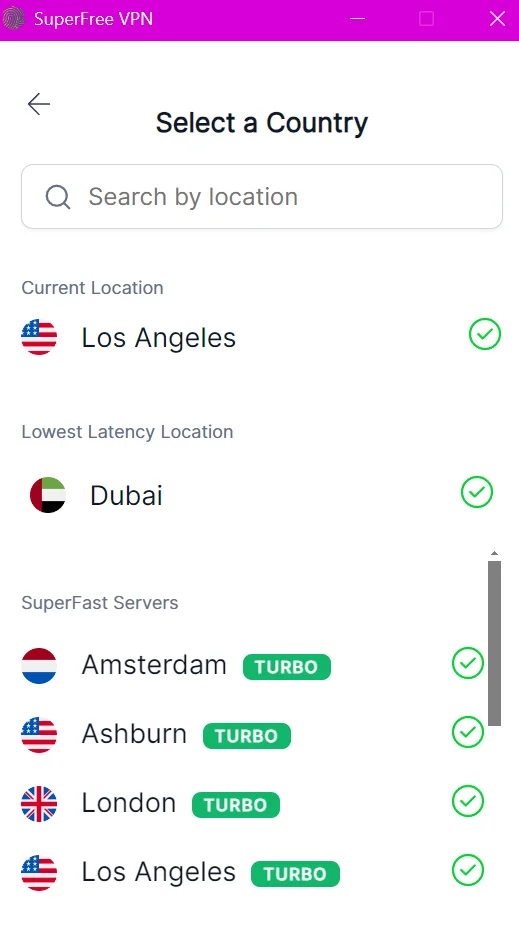
Note: While free or cheap VPNs also change your IP address, Netflix can easily detect these tools and block your access to the streaming platform. Therefore, it is recommended to install a secure VPN.
Use Tor Browser
Here is how you can change your Netflix location via the Tor Browser:
- Download and install the Tor Browser on your device
- Go to the folder where you installed the Tor Browser
- Now, you need to find the torrc file on your device.
- For Windows users, you can find it in this directory: TorBrowser\Data\Tor\torrc
- Open the torrc file in Notepad
- Add the code of your preferred country in parentheses (For example, write {us} for USA)
- Next, enter this line of code: StrictNodes 1
- Save the. torrc file and exit this directory
- Restart the browser, or preferably restart your device
- Visit the Netflix site and sign in with your credentials
- Now, you can access Netflix’s USA library, as it sees your current location as being in the USA
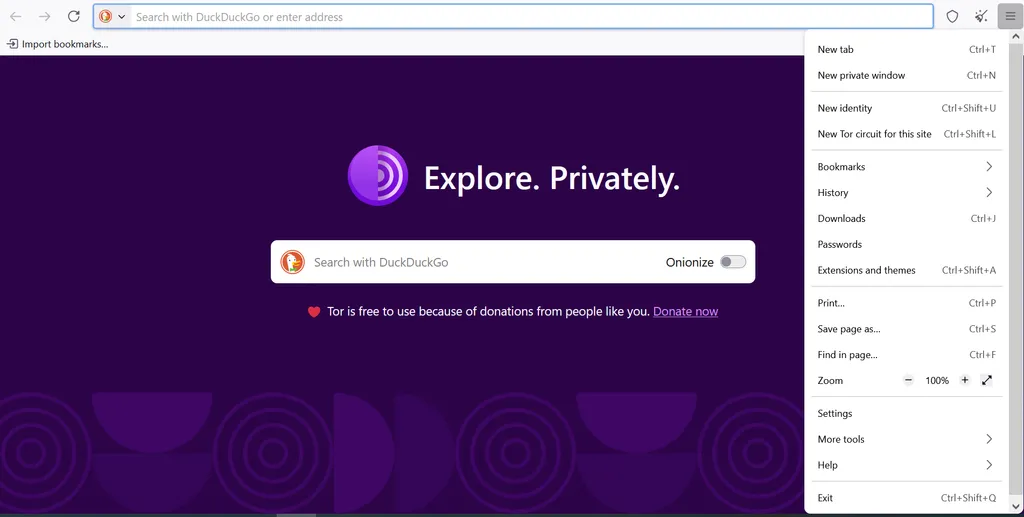
However, keep in mind that this method doesn’t guarantee access to your Netflix account. In some cases, Netflix can detect Tor IPs and force you to choose another browser in order to use Netflix.
Note: If you don’t want to deal with the torrc file, you can simply use Netflix by skipping steps 5 to 9. Tor Browser changes your location randomly. But this means you cannot choose the Netflix region of your choice.
Download an Antidetect Browser
If none of the above methods look convincing to you, you can follow these steps. By following the steps correctly, you will be able to change your Netflix region.
- Install an antidetect browser that supports proxy configuration.
- Create a new browser profile.
- Add a country-targeted proxy to that profile.
- Configure the profile’s browser settings.
- Launch the profile through an assigned proxy (the one you have already purchased).
- Open Netflix and check the resulting connection.
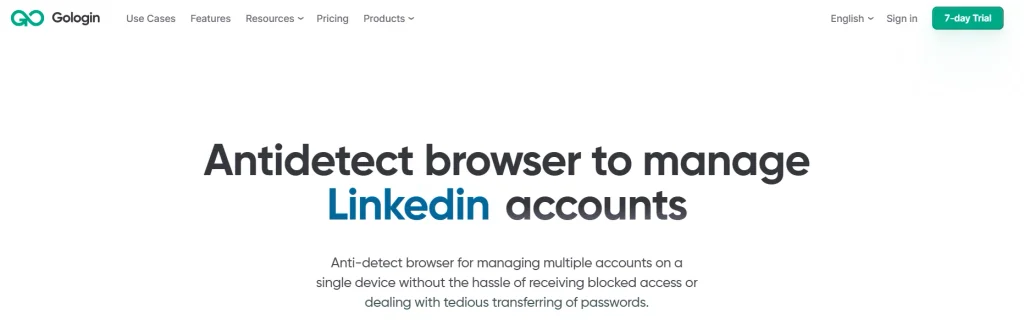
Note: While antidetect browsers hide your hardware fingerprint, they cannot spoof your IP address on their own. This is why you need to use a secure proxy with this browser to change your virtual location.
So, Which Method Works the Best
Now the question in your mind must be this: “Which option should I choose to change the Netflix region?” Here’s a comparison to make life easier for you:
| Factor | Proxy | VPN | Tor Browser | Antidetect Browser |
| Ease of Use | Slightly more technical than installing a VPN | Very Easy | Slightly More Technical | Requires technical knowledge |
| Efficiency | Very High | Can be detected by Netflix | Not ideal for streaming platforms | Not always reliable. Depends on the type of proxy used |
| Free Trial | Yes | Most VPNs offer 15 or 30-day trials | Free | Depends on the type of proxy service provider you choose. |
| Pricing Model | Pay per GB Or Pay per IP | -> Monthly, yearly, or bi-yearly packages. -> GBs used don’t matter | Free | -> Monthly or yearly subscriptions for the antidetect browser -> Pay-as-you-go model for integrating the proxy |
| Example | Proxying | NordVPN | Tor | Gologin |